Configuration - Users
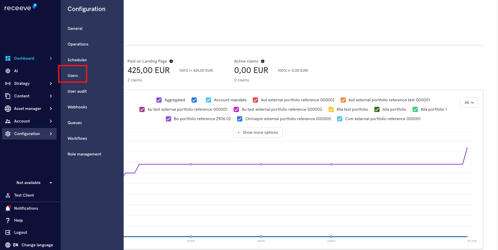
The User Configuration allows you to add, modify, or delete permissions to users within the platform. To configure users, go to Configuration. Under Configuration, click Users.
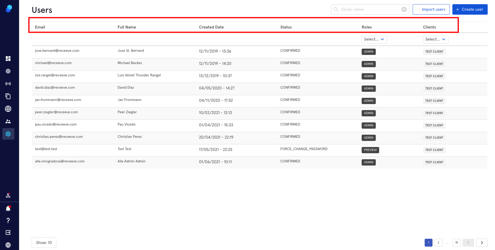
User Management
The User Management page displays information about the users: email address, full name, created date, status, role, and clients (meaning access to different instances).
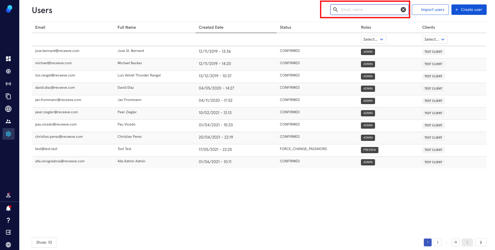
Search box
You can search for the email address or name of a user to quickly view that user’s information. To do this, begin typing in the search bar and the table will automatically show the relevant email address or name.
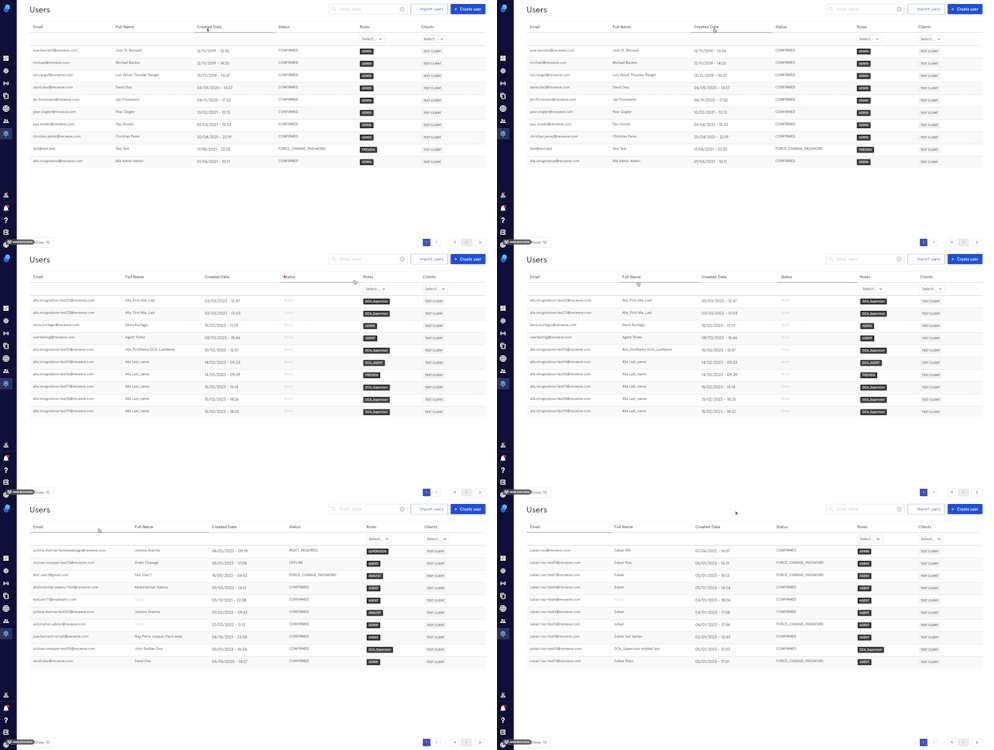
Sort
You may sort the table by email, full name, created date or status by clicking its column header. This will sort the table alphabetically or reverse, or latest to oldest on created date.
Filters
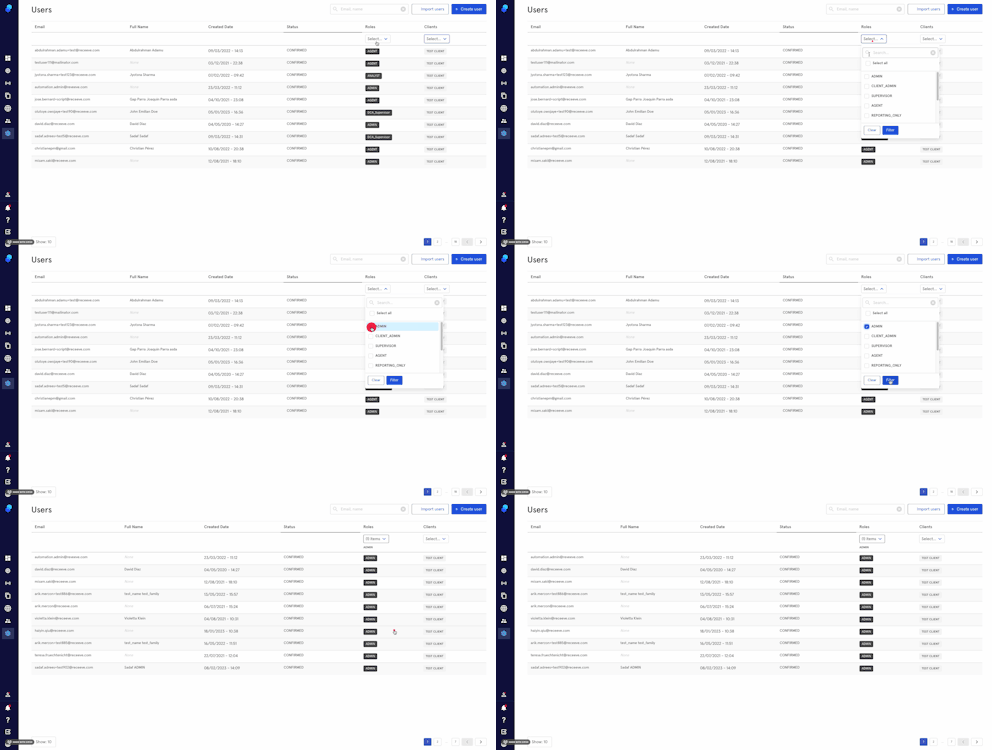
Yo can filter, by roles and/or by clients.
To do this:
- Click the dropdown under each column
- Select the preferred filter/filters or use the search box
- Click Filter to proceed or Clear to remove all the filters.
Import users
You can batch-import users into receeve. This saves time when you need to add multiple users at one time. Here's how:
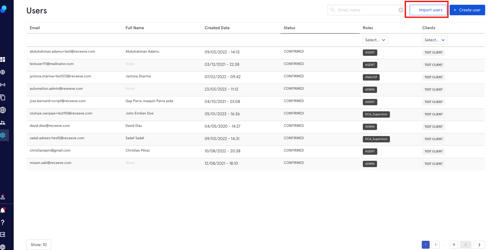
- Click Import users at the top right corner of the page.
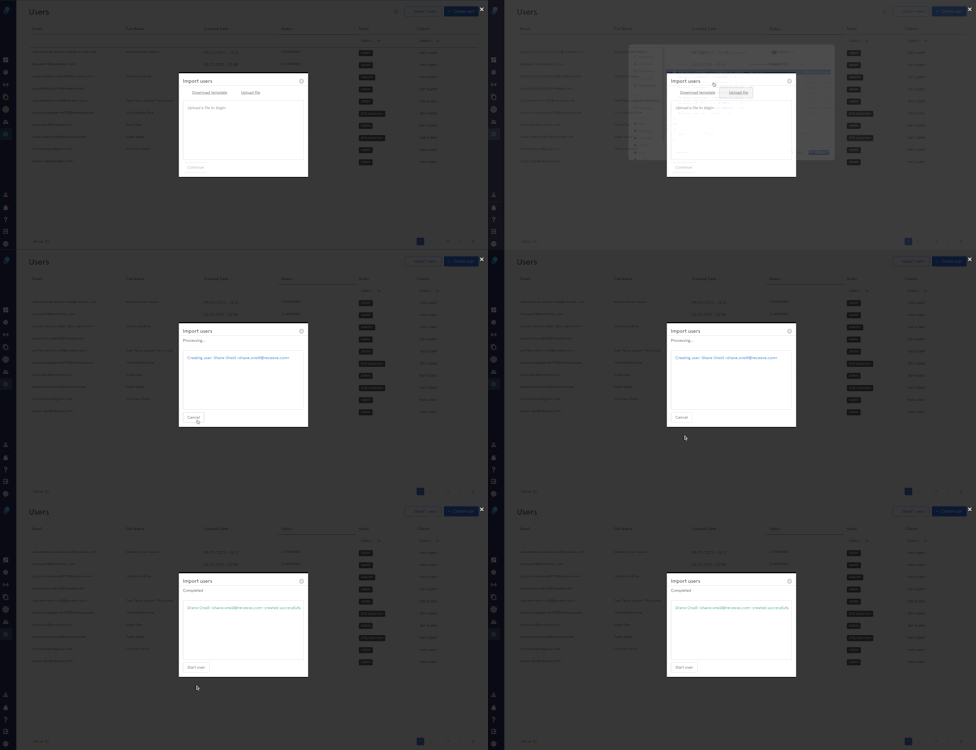
- Download the template and fill it in

- Upload the file you've just filled in and click on Continue
- You'll see a confirmation that your upload was successful in green
- Other messages:
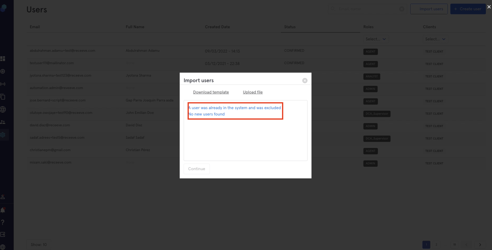
a. If the user/users are already in the system (blue):
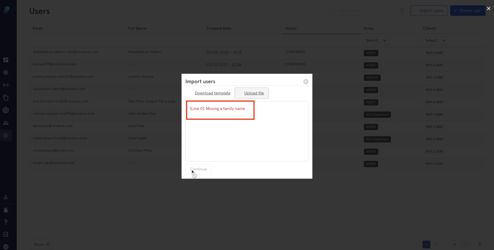
b. If there are mistakes in the file you filled in (red):
Create user
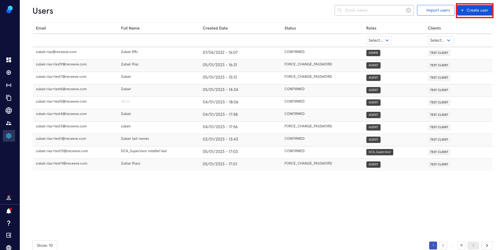
To manually create new users, click onCreate Useron the top right corner of the page.
User Details page
Clicking on Create User will take you to a page where you can add the Personal Details, Account Details and Roles of the new user user.
- Fill in the personal details (Middle name optional)
- Add the Account details (phone number optional)
- Select role from the dropdown
- Select Client and click Apply to proceed or Cancel to Cancel
- Click Save (top right)
- A toast will inform you of the successful upload (green)
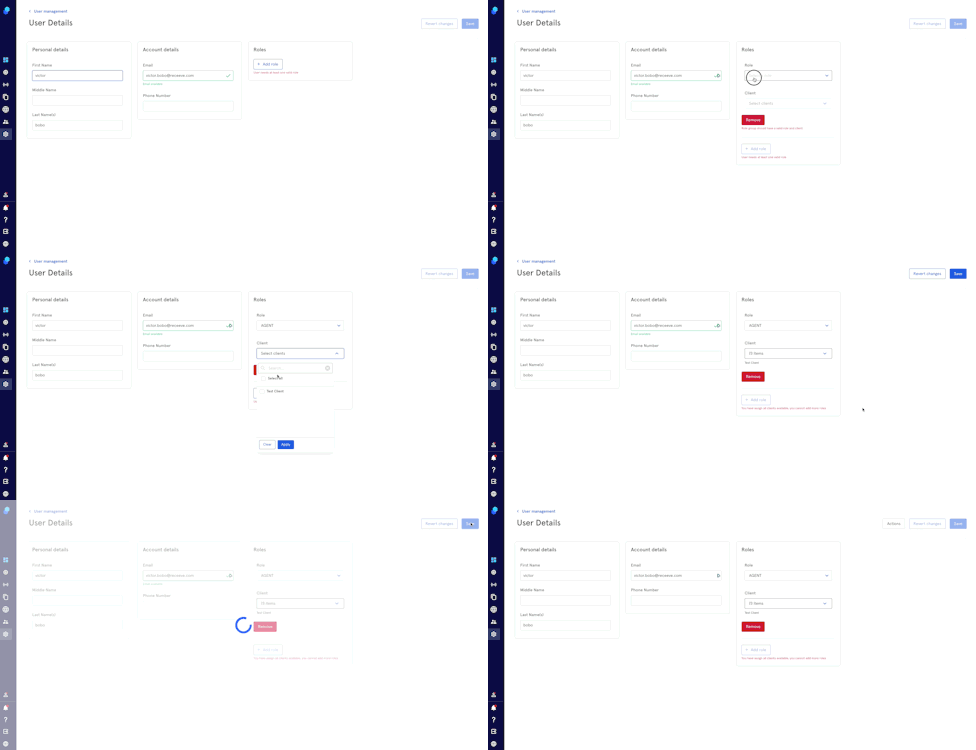
You can add more roles by clicking on the add role button
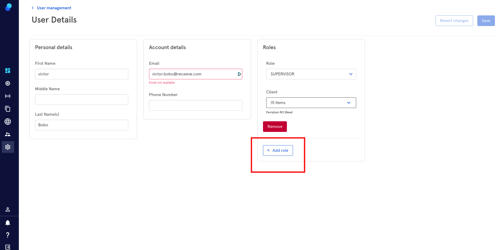
Please note you cannot have two roles in one client. ie: you cannot be both agent and supervisor of the Classic Bank client.
Edit users
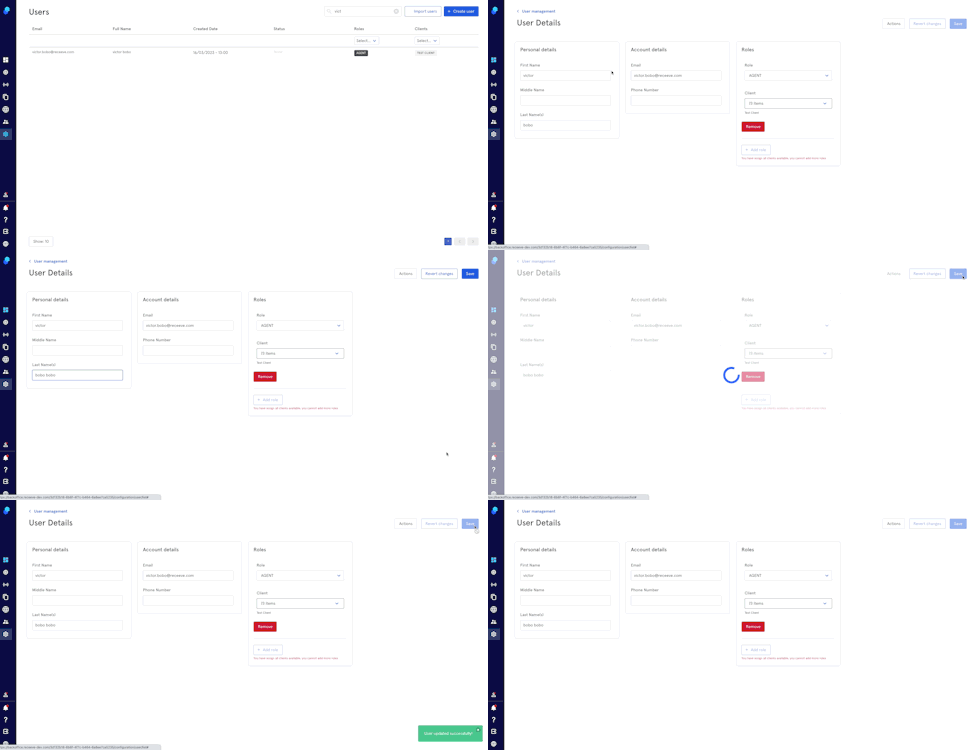
- Click on the user's name
- Edit on the User Details page
- Click Save or click on Revert Changes to undo
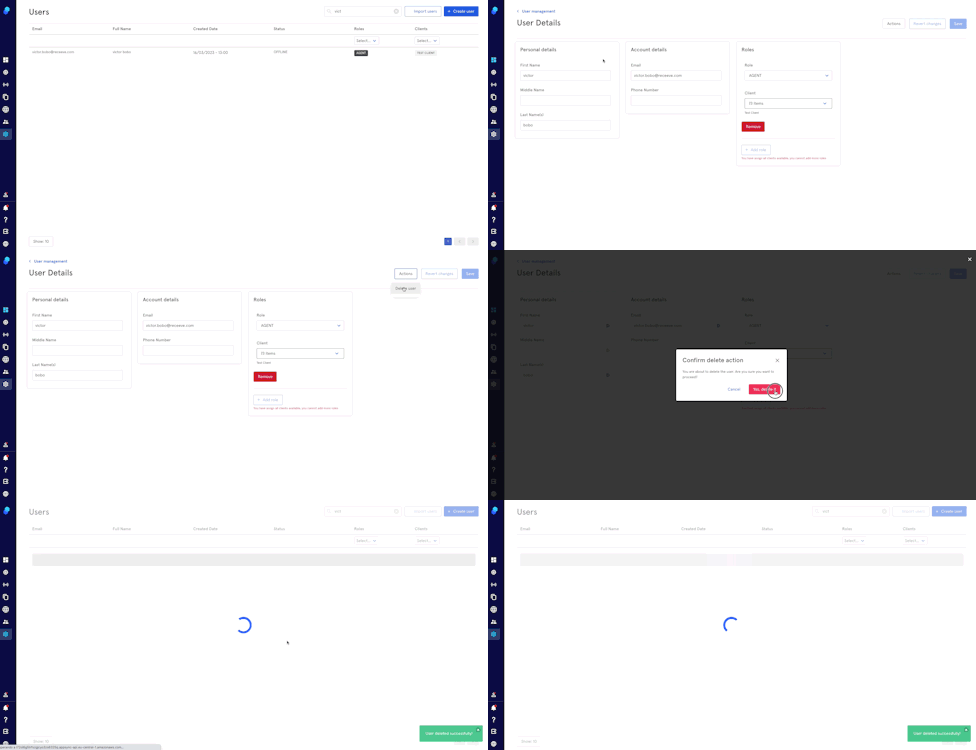
Delete users
- Click on the user's name
- You'll be redirected to the User Details page
- Click on Actions
- Click on Delete user
- Confirm or Cancel