Configuration: Workflows
Workflows are a set of action steps to be performed at an account level related to claims or invoices. The claims, once subjected to a specific workflow, will no longer follow the default strategy steps. With the workflow editor feature, you'll be able to create your own workflows with multiple steps and phases. You can use this feature to handle special cases.
Steps - Creation of Workflows
- From the main page, click on Configuration → Workflows
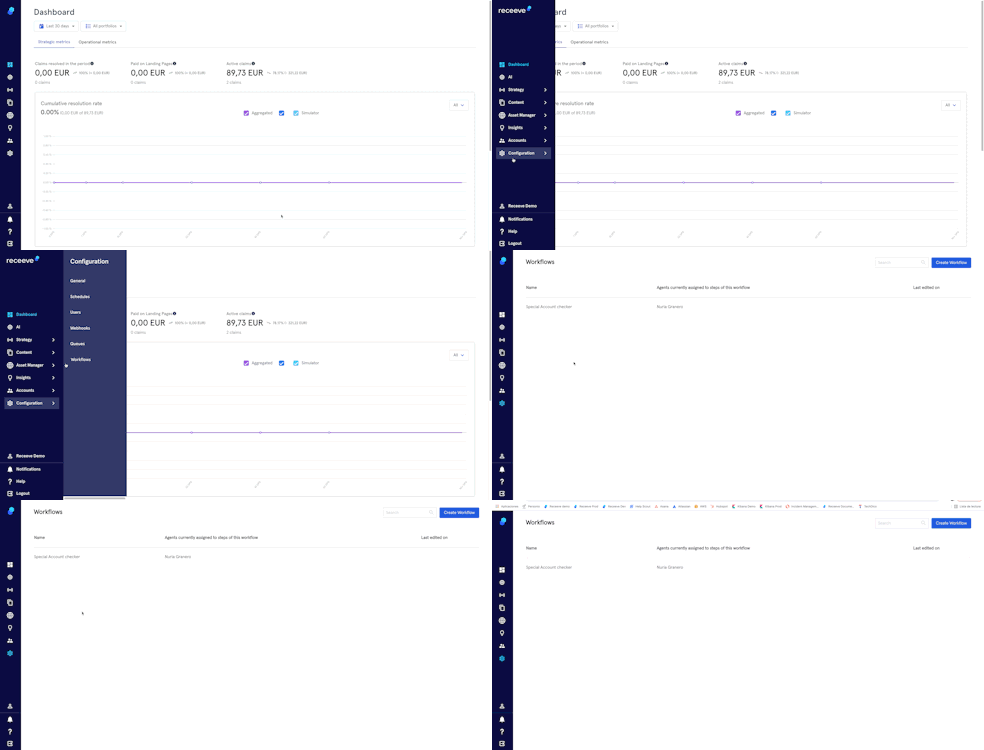
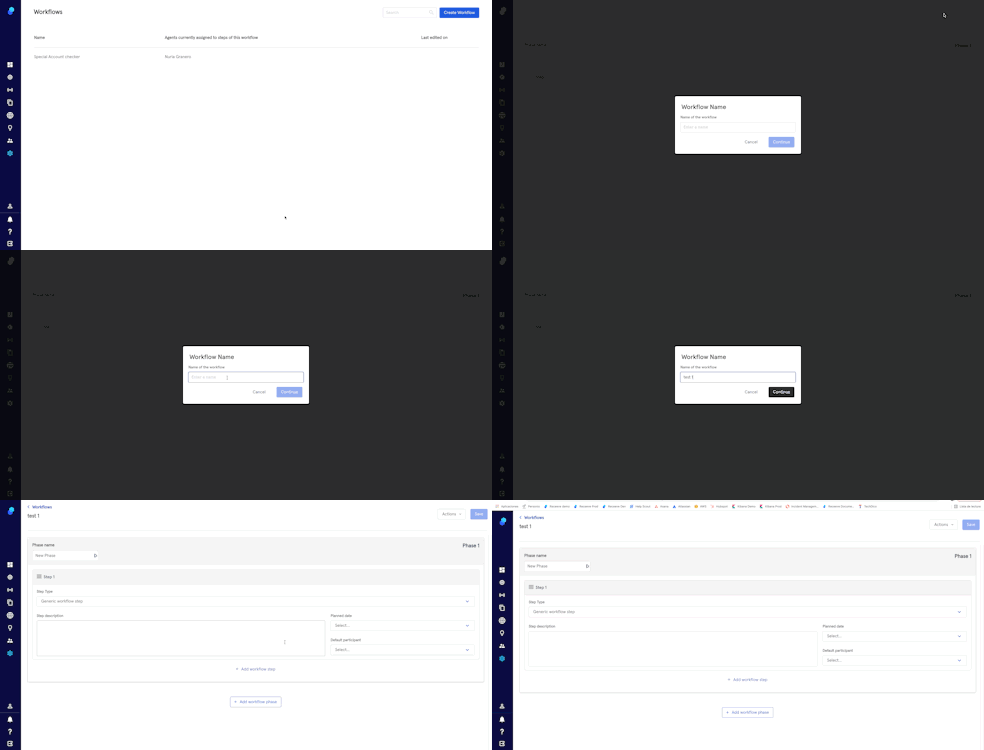
- Click on the ‘Create Workflow’ button and enter the name of the workflow. Then, click on the 'Continue' button.
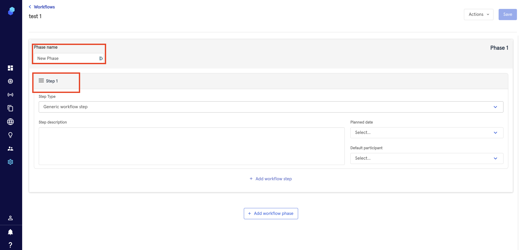
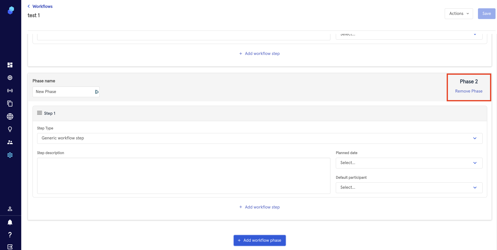
- In the workflow editor you will find phases and within the phases you'll be able to add Steps
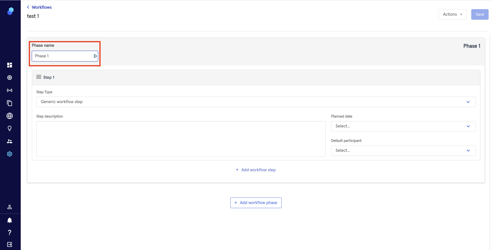
- Name the phase (ie, phase 1)
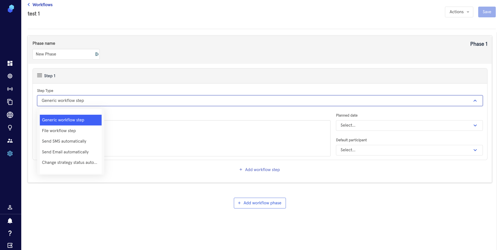
- Now you can define specific actions in the Steps section by choosing a step type from the dropdown. These actions are:
- Generic workflow step (Any action taken by an agent)
- File workflow step (Upload document)
- Send SMS automatically (Send an automatic SMS)
- Send Email automatically (Send an automatic email)
- Change strategy status automatically. (i.e pause strategy)
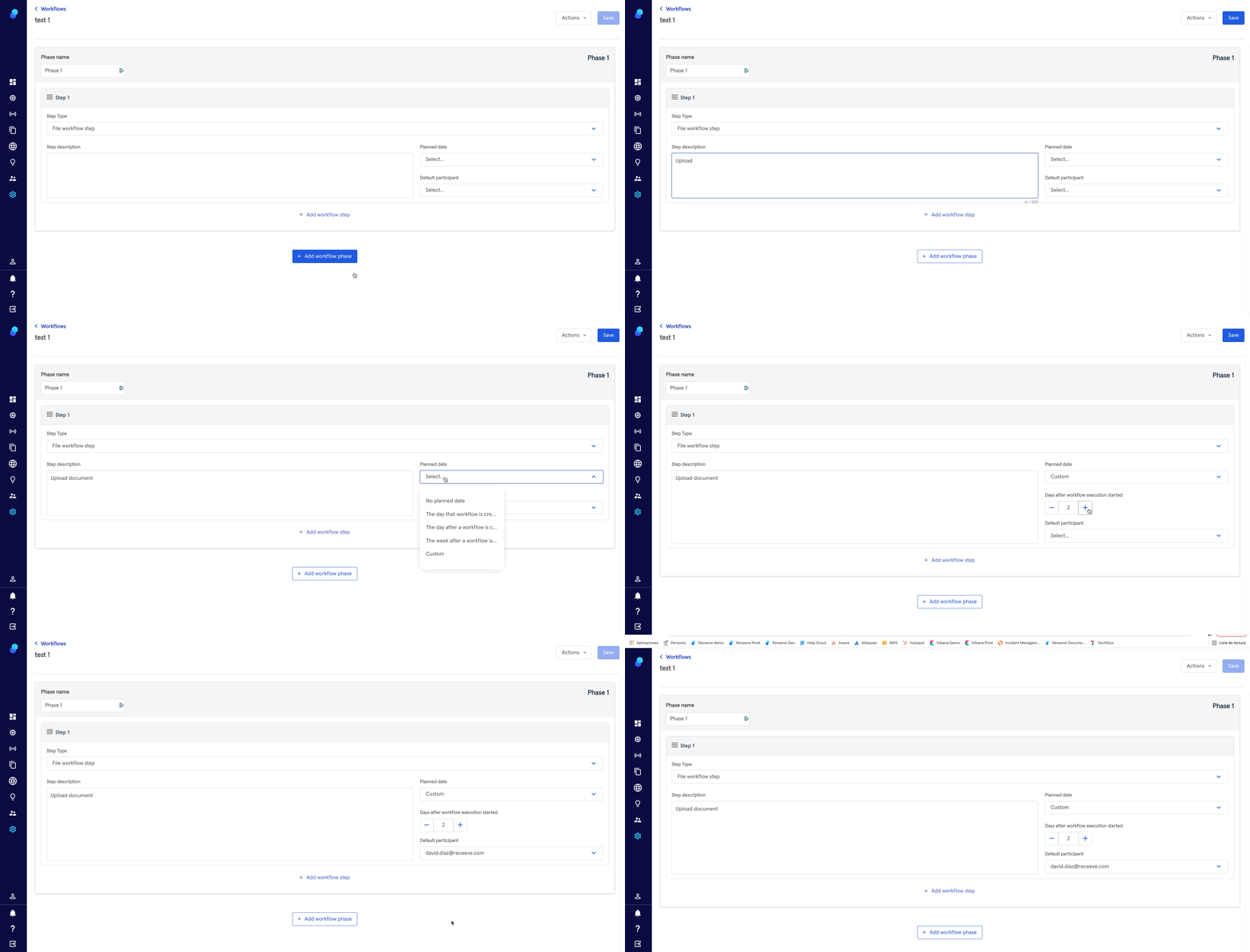
- You can add a description, a planned date and a default participant. Please note that filling in these fields is mandatory.
Workflow steps that imply manual work will have a planned date and default participant. The steps that are executed automatically, will NOT have a planned date and default participant.
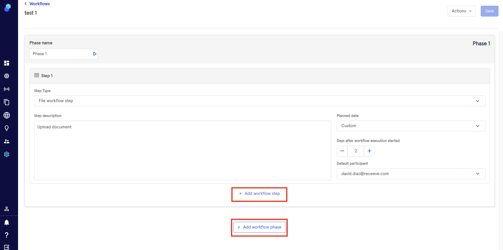
- You can add more steps/phases by clicking on the buttons 'Add workflow step'/ 'Add workflow phase'
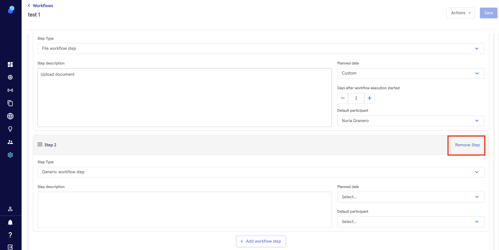
- You'll be able to delete steps or phases by clicking on the 'Remove Step' or 'Remove phase' buttons.
Please note that there will be a default phase and a step 1 in the workflow editor that you won't be able to delete.
- If you want to delete or rename the workflow, click on the 'actions' dropdown (top right)
10. Once you have defined all the actions for the steps, click on the ‘Save’ button (top right)

You'll be able to use the existing workflows in the Account Manager. For more information please check the 'Start Workflow' section inthis article.