Simulator: Understand receeve's claim simulator
Claim Simulator
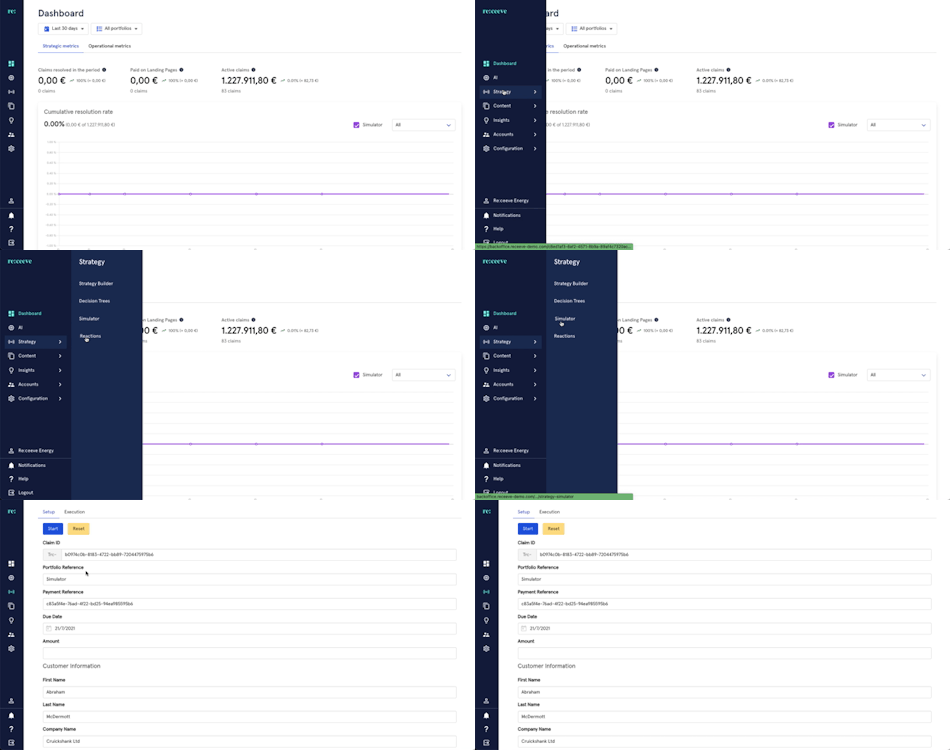
The Claim Simulator allows clients to simulate strategies by filling out a form and executing the events associated with the strategy. The sequence of events are shown near real time, as well as any errors encountered. To simulate claims, click Strategy from the menu. Under Strategy, click Simulator.
Setup
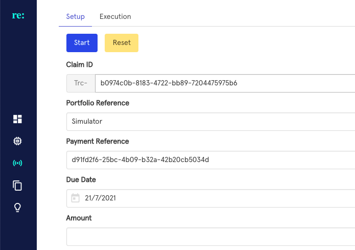
Under the tab Setup, you can view the following fields: Claim ID, Portfolio Reference, Payment Reference, Due Date, and Amount.
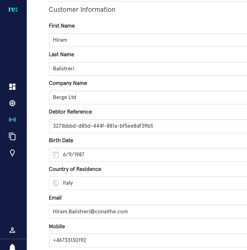
In the Customer Information Section, you can view the First Name, Last Name, Company Name, Debtor Reference, Birth Date, Country of Residence, Email, and Mobile. You can simulate the strategy by adding your own email address or mobile number to receive a copy of what your client will receive.
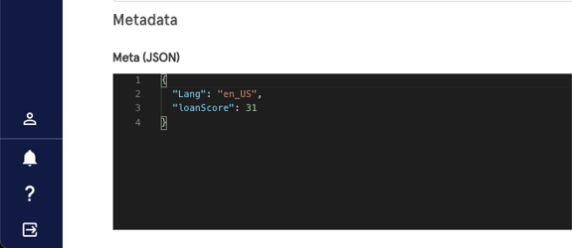
At the bottom of the page, the Metadata is shown.
Execution
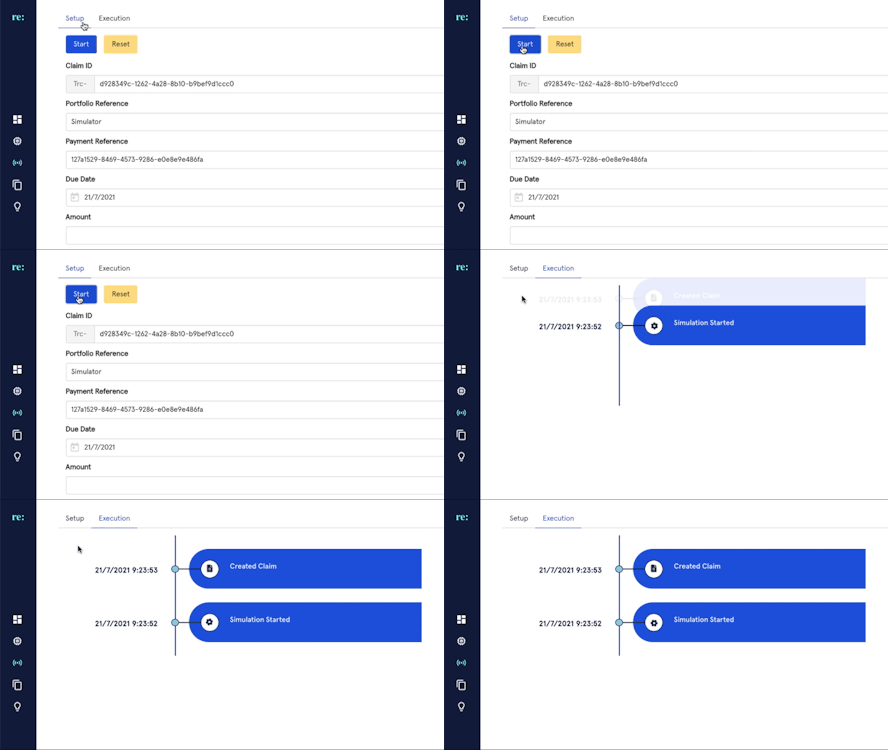
Once ready, click the Start button to begin the simulator. This will redirect you to the Execution tab where you will see the result and status of the simulation in near real time.
Other times, events may show out of order due to overactivity. This is okay. The timestamps will indicate the correct sequence.
Example
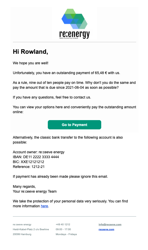
By adding your email or mobile, you will receive a sample of the content, verify if everything is in order, and make changes as necessary. Note that if you interact with a sample claim, the timeline also records those interactions. You might notice some delay as events are bundled before they are displayed.