Step Type: Enable/Disable Callbacks
The Enable/Disable Callbacks step will enable or disable the ability for the consumer to schedule a callback with you from the landing page.
Creating the step
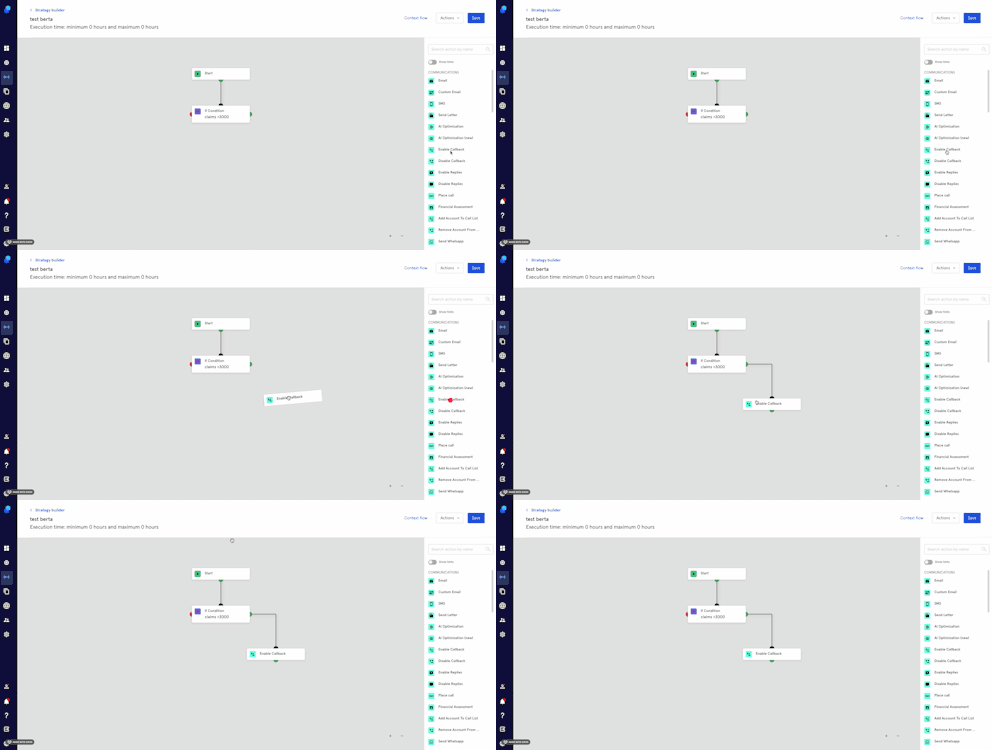
- Click Strategy from the menu and then proceed to Strategy Builder.
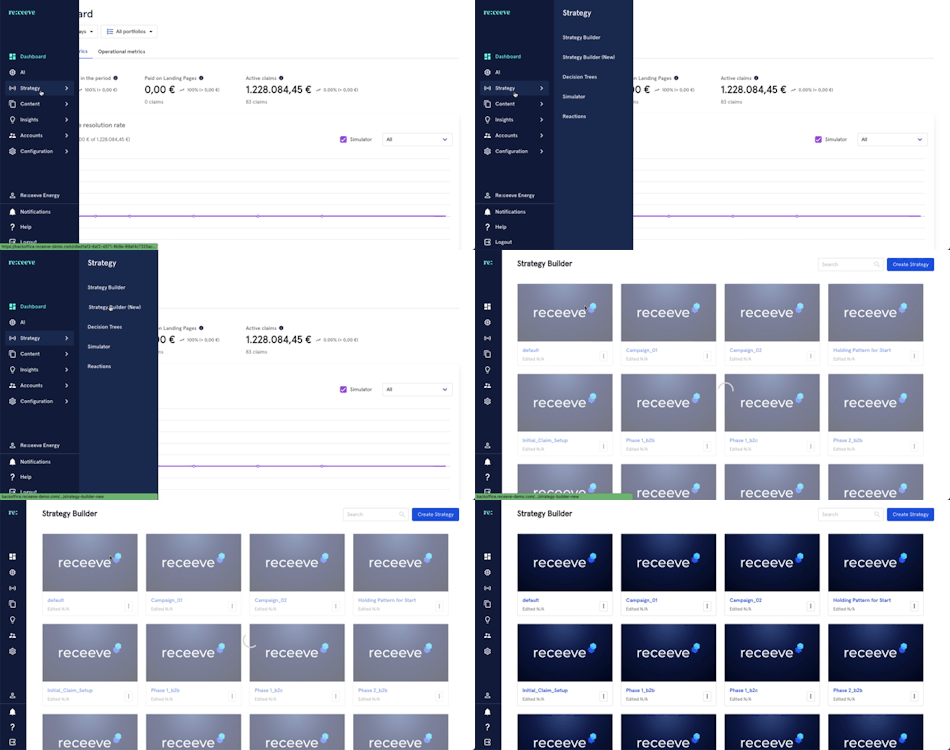
- On the step library, locate the 'Enable Callback' step under the Communications section (Green) and then drag it to your strategy. You may also look for the step by typing in the Search box.
- Click on the step; a modal will appear on the right side of your screen.
- Add a description.
- Click on 'Continue' to proceed or click on 'Delete step' to delete it.
Let's know check a use case:
Example
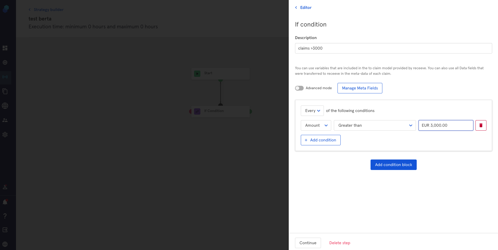
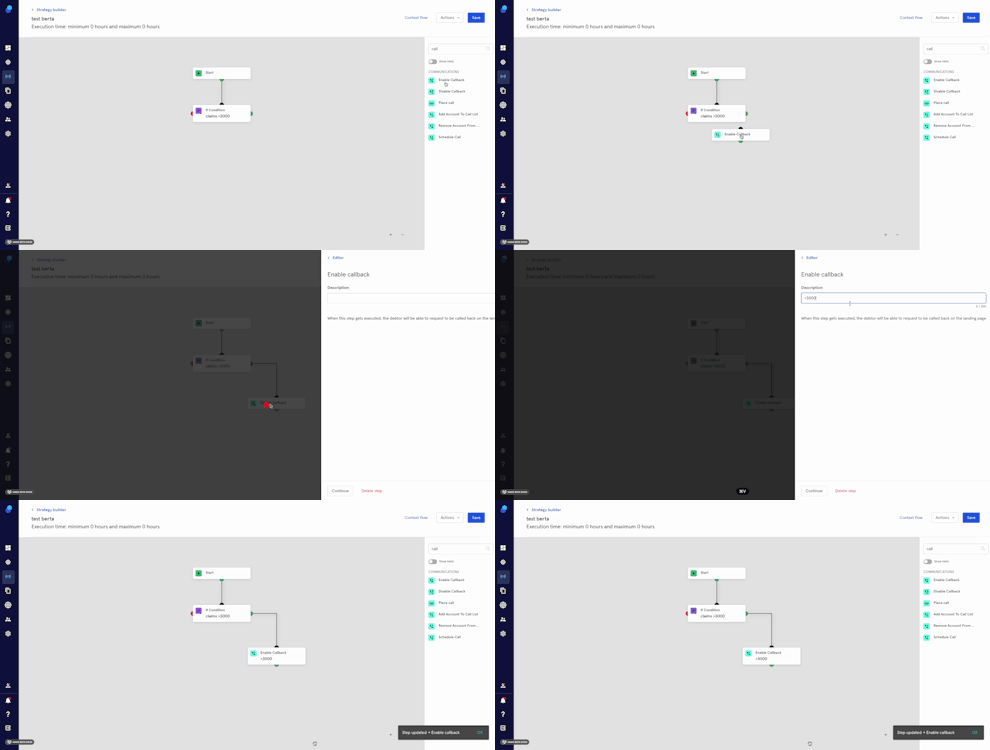
You have created a Strategy that has an "if Condition" step asking whether the amount is over 3000 € as you'd like to enable call backs for claims over this specific amount. The next step would be to drag and drop the step to enable it in your strategy so claims that fulfill this condition can request a call.
Please note that scheduling a call is not enabled by default. We suggest you to only enable it for very specific circumstances.
This would be our condition:
This is how we would create the step (Steps 3, 4, 5 in the description above)
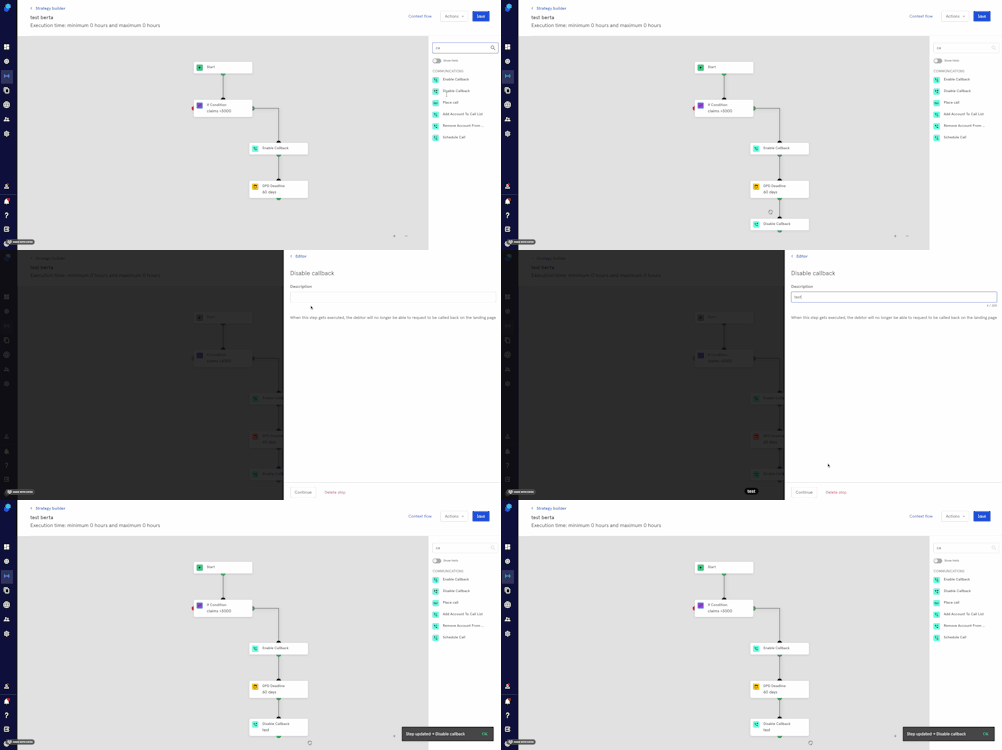
Disabling a callback
You can use the 'Disable Callback step' when you no longer want your customers to be able to schedule a callback from the landing page.
Following the example: Let's say that we no longer allow callbacks for claims >3000 € if they're more than 60 DPD (days past due) because we'll be outsourcing claims from this point on.