AI SMS Editor
The AI SMS Editor is an AI-powered chat assistant built into the Messaging Builder. Describe the message you need and it fills in the whole template for you: the name, the sender, the categories and the body. Keep prompting to refine it, or ask it to explain the template you have open. It works directly on the message in the builder, so you see every change as it lands.
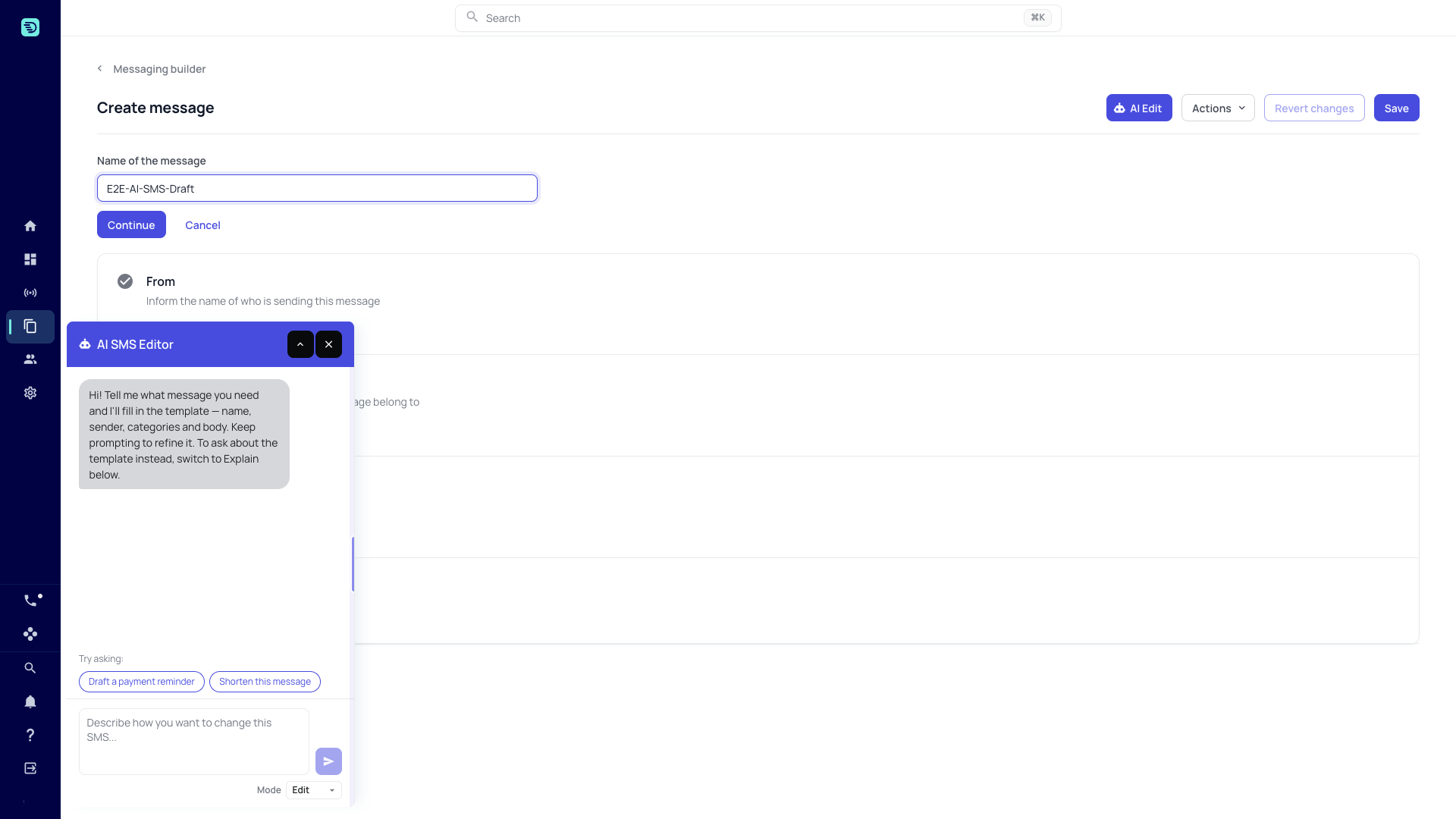
Opening the assistant
- On a new message, the panel opens by itself as soon as the builder opens, in Edit mode, ready for your first prompt.
- On an existing message, click the AI Edit button in the builder header.
The AI SMS Editor panel opens over the builder. The message stays fully visible and editable while the panel is open; use the minimise button (the chevron) in the panel header when it covers a step you want to reach, and the close button (×) beside it.
The two modes
Choose the mode from the Mode selector at the bottom of the panel:
| Mode | What it does |
|---|---|
| Edit | Fills in and changes your message — one prompt proposes the whole template, further prompts refine it. |
| Explain | Answers questions about the message you have open. It only reads the template. |
The assistant opens in Edit mode. Switching modes doesn't clear your conversation.
Getting started with suggested prompts
When the conversation is empty the panel shows suggested prompts under Try asking:. In Edit mode these are "Draft a payment reminder" and "Shorten this message"; in Explain mode it is "Which placeholders can I use here?". Click one, or type your own request into the box and click the send button.
A few things the assistant can do:
- "Draft a payment reminder with the outstanding amount, the payment reference and the online payment link"
- "Make the body shorter and more formal"
- "Rename the message to Final-Reminder and file it under the Reminders category"
- "Translate this message to Spanish"
- "What placeholders does this message use?"
How it works on your message
The assistant always works on the current state of the message in the builder, including unsaved changes you made by hand. When it makes a change, it appears immediately in the wizard steps, and the assistant lists each change it applied under its reply.
You can keep editing the steps manually and combine AI edits with your own changes freely.
AI edits behave exactly like manual edits — they are only persisted when you click Save. See Saving your changes.
Usage limits
The assistant shows your team's current AI usage above the input box (for example, "AI usage: 2% of your team's hourly limit · resets in ~42 min"). See Usage limits & availability.
In this section
- Edit your message — fill in and refine a template with natural language
- Explain your message — ask about the template you have open
- Saving your changes — how AI edits are persisted
- Usage limits & availability
- Safety & good practices