Edit your message
Edit mode lets you fill in and change an SMS template by describing what you want in plain language. The assistant applies the change directly in the builder, where you can see it immediately and keep editing by hand.
Select Edit from the Mode selector (it is the mode the assistant opens in), then describe what you need.
AI edits are not saved automatically. They appear in the builder like any manual edit and are only persisted when you click Save. See Saving your changes.
One prompt fills in the whole template
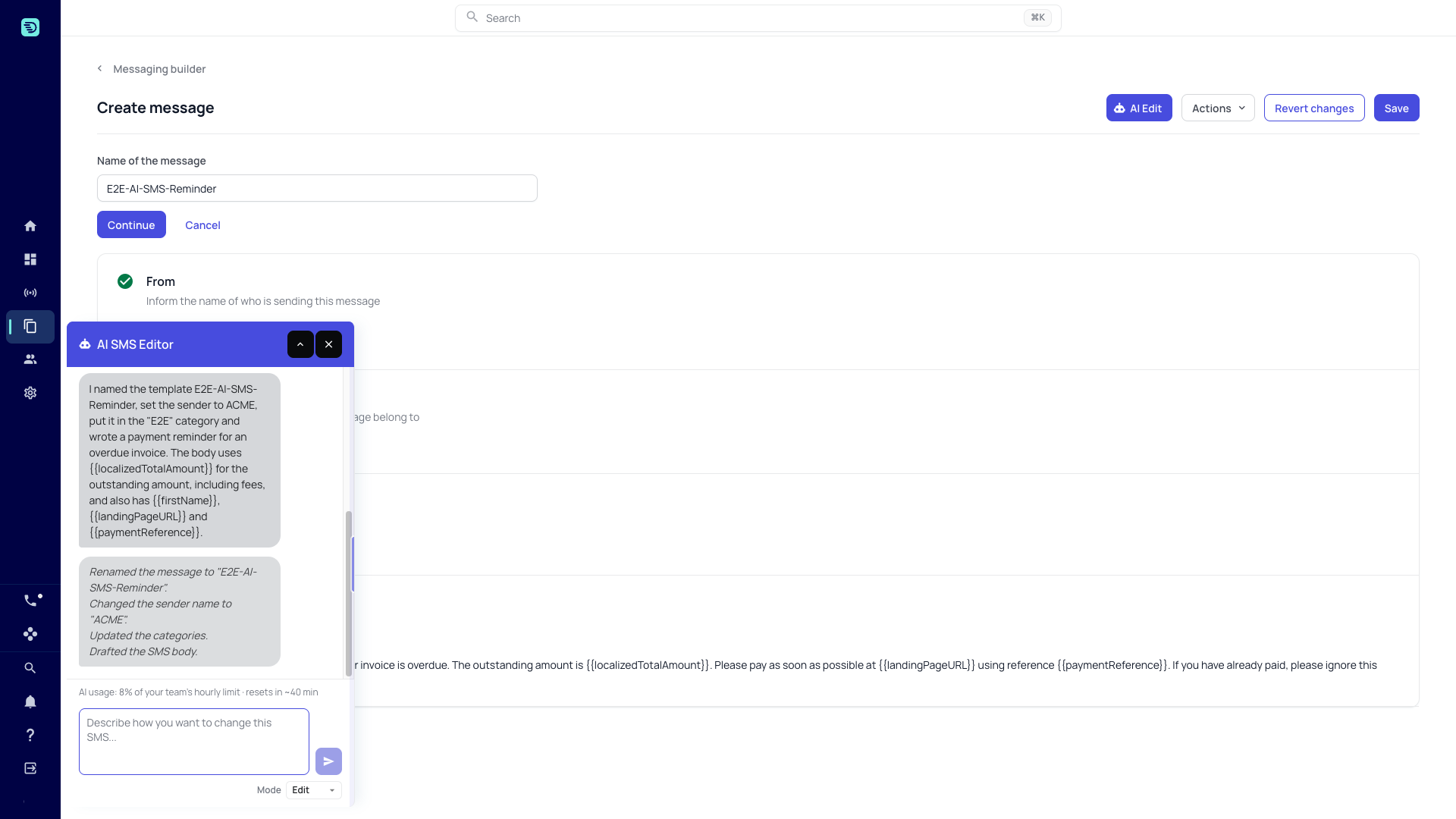
On a new message, tell the assistant what message you need. One prompt proposes every part of the template at once:
- the name of the message,
- the sender name,
- the categories, picked from the categories your account already has,
- the body, with the right placeholders.
The assistant explains what it set up and lists each change under its reply — for example "Renamed the message to "Final-Reminder".", "Changed the sender name to "ACME".", "Updated the categories.", "Drafted the SMS body.". The wizard steps update as the changes land.
Refine with further prompts
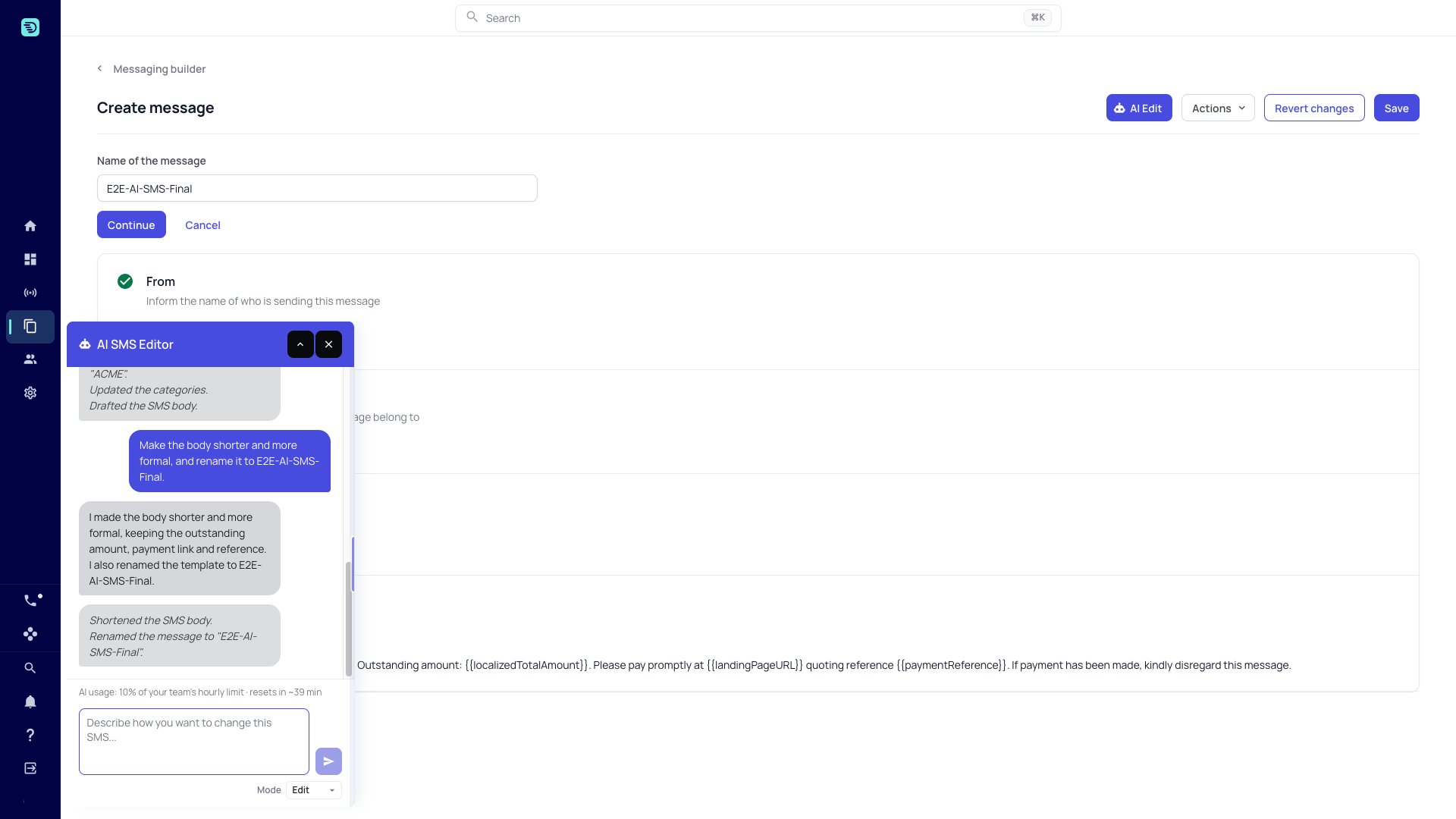
Each prompt builds on the current state of the message, including anything you changed by hand in between. Ask for the next change in plain language, several at once if they belong together:
"Make the body shorter and more formal, and rename it to Final-Reminder."
The assistant applies the change, says what it did and what it kept — for example that the shorter body still carries the first name, the outstanding amount, the payment reference and the online payment link — and lists the changes again.
What you can change
Body
- "Shorten this message"
- "Rewrite the body in a friendlier tone"
- "Add the payment reference to the message"
The body is plain text: no HTML or markup. It can be up to 1200 characters.
Placeholders
The assistant inserts placeholders such as {{firstName}}, {{localizedTotalAmount}}, {{paymentReference}} and {{landingPageURL}} from your account's placeholder catalogue — the same list you get from the Placeholders button. It only uses placeholders that exist there; if you ask for one that doesn't, it tells you instead of inventing it. For the full list see the Placeholder reference.
Language
- "Translate this message to Spanish"
- "Write this in German"
The assistant rewrites the body in the language you name — in plain words or as a code such as de-DE — and keeps every placeholder exactly as it is. The translated body is still plain text within the same 1200-character limit, and the reply confirms it with "Translated the SMS body.". Translation is an Edit mode change; in Explain mode the assistant can tell you what the translation would say but asks you to switch to Edit to apply it.
Name, sender, categories and context
- "Rename the message to Payment-Reminder-7-days"
- "Send it from ACME"
- "File it under the Reminders category"
- "Change the context to Strategy Builder"
A sender name the assistant sets must be 3 to 11 characters: letters, digits and spaces, with at least one letter. On a new message the sender is set only if you say who it's from; otherwise the assistant writes the rest and says the sender is still to choose. Categories come from the categories that already exist on your account; the assistant never creates a new one. The assistant also changes the template's context — which decides which placeholders it can use — but only when you ask, and it names the placeholders that stop working.
When a request breaks a rule
If a request breaks one of these rules — a placeholder that isn't in the catalogue, markup in the body — the assistant changes nothing in that turn and tells you why.
Working alongside manual edits
- Changes appear in the wizard steps immediately.
- The assistant applies its edits on top of your unsaved manual changes.
- You can open any step with Edit and fine-tune an AI-written value by hand afterwards.