AI Email Editor
The AI Email Editor is an AI-powered chat assistant built into the Email Builder. It lets you understand and edit your email templates using plain language — no need to click through every block and setting by hand. Ask it to explain what a template does or make changes for you, and it works directly on the email you have open in the editor.
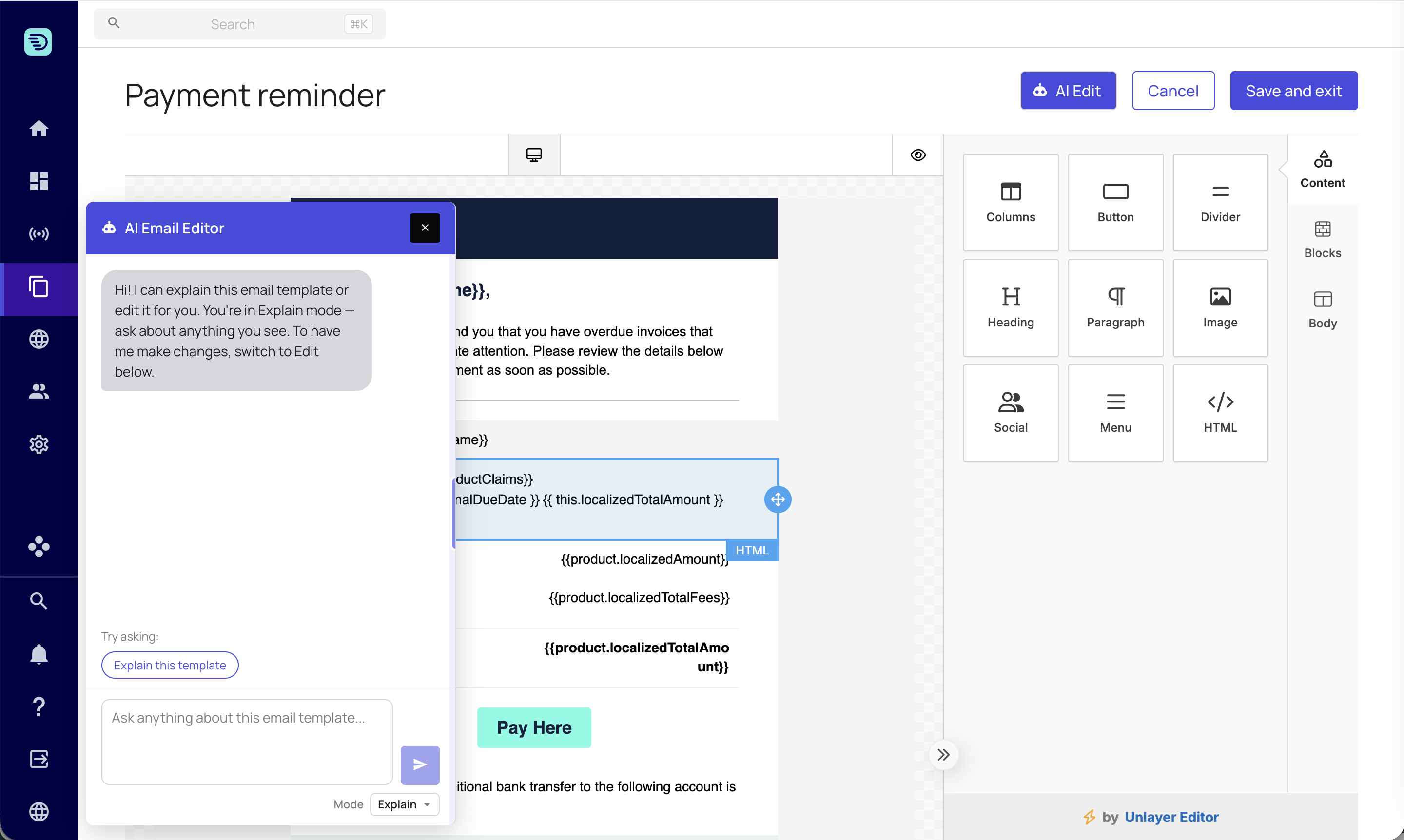
Opening the assistant
- Open an email template in the Email Builder and enter the content editor.
- Click the AI Edit button in the editor header.
- The AI Email Editor panel opens alongside the editor. The template stays fully visible and editable while the panel is open.
You can close the panel at any time with the × button — your conversation stays until you leave the editor or switch to a different template.
The two modes
The assistant works in two modes, which you choose from the Mode selector at the bottom of the panel:
| Mode | What it does |
|---|---|
| Explain | Understand your email — get a walkthrough of its content, structure and styling, or ask about any single block. It only reads the template. |
| Edit | Change your email — tell the assistant what you want and it updates the copy, styling and layout for you to review before saving. |
The assistant opens in Explain mode by default. Switching modes doesn't clear your conversation — you can explain a template and then edit it in the same session.
Getting started with suggested prompts
When the panel is empty it shows suggested prompts to get you going (for example, "Explain this template"). Click one, or type your own request into the box and press Enter.
A few things the assistant can do:
- "Explain this template"
- "Make the call-to-action button more prominent"
- "Add a divider above the footer"
- "What placeholders can I use in this email?"
How it works on your email template
The assistant always works on the current state of the email in the editor, including any unsaved changes you have made by hand. When it makes an edit, the change appears immediately in the editor so you can see exactly what happened.
You can keep editing manually and combine AI edits with your own changes freely.
AI edits behave exactly like manual edits — they are only persisted when you click Save. See Saving your changes.
Referencing placeholders and other emails
The assistant knows your template's placeholders, meta fields and formatting helpers, so you can personalise your emails correctly — see Placeholders & personalization.
Type @ in the chat box to reference other email templates, so the assistant can explain or compare them, or borrow their style for the email you're editing. See Referencing other emails.
Usage limits
The assistant shows your team's current AI usage above the input box (for example, "AI usage: 5% of your team's hourly limit · resets in ~12 min"). See Usage limits for details.
In this section
- Explain your email — understand a template or a single block
- Edit your email — make changes with natural language
- Placeholders & personalization — merge tags, meta fields and helpers
- Referencing other emails — using
@mentions - Saving your changes — how AI edits are persisted
- Usage limits
- Safety & good practices