Referencing other emails
Type @ in the chat box to bring another email template into the conversation. This lets the assistant explain or compare templates, or borrow the style and tone of one template while editing another.
The mention picker
When you type @, a picker opens listing your email templates. Keep typing to filter the list by name, then choose the template you want. It inserts a mention chip such as @Welcome-Email.
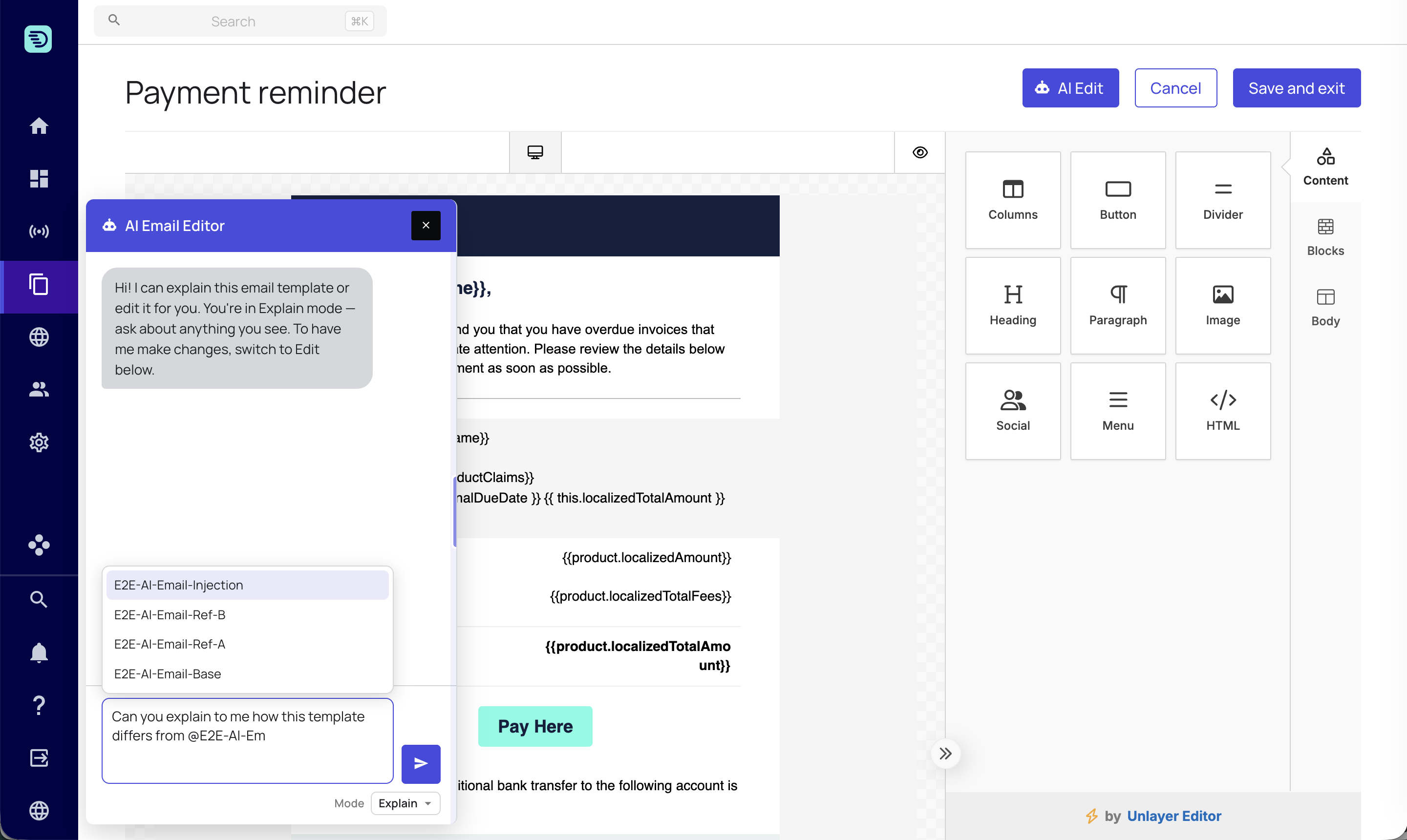
Using mentions
Explain or compare (in Explain mode):
- "Explain @Welcome-Email"
- "What's the difference between this template and @Final-Notice?"
When you mention a template, the assistant fetches its full content and uses it as context alongside the email you have open. The referenced template is read-only — it's never changed by the conversation.
You can include multiple mentions in a single prompt — for example to compare several sibling templates. You can reference up to 10 templates per prompt; if you need more, split your request across a couple of messages.
Comparing a new template against a proven one is a quick way to spot differences in tone, structure or calls to action before you send.