Edit your letter
Edit mode lets you fill in and change a letter by describing what you want in plain language. The assistant writes into the letter's content fields directly, the preview on the right re-renders, and you can keep editing by hand.
Select Edit from the Mode selector (it is the mode the assistant opens in), then describe what you need.
AI edits are not saved automatically. They appear in the builder like any manual edit and are only persisted when you click Save. See Saving your changes.
One prompt fills in the whole letter
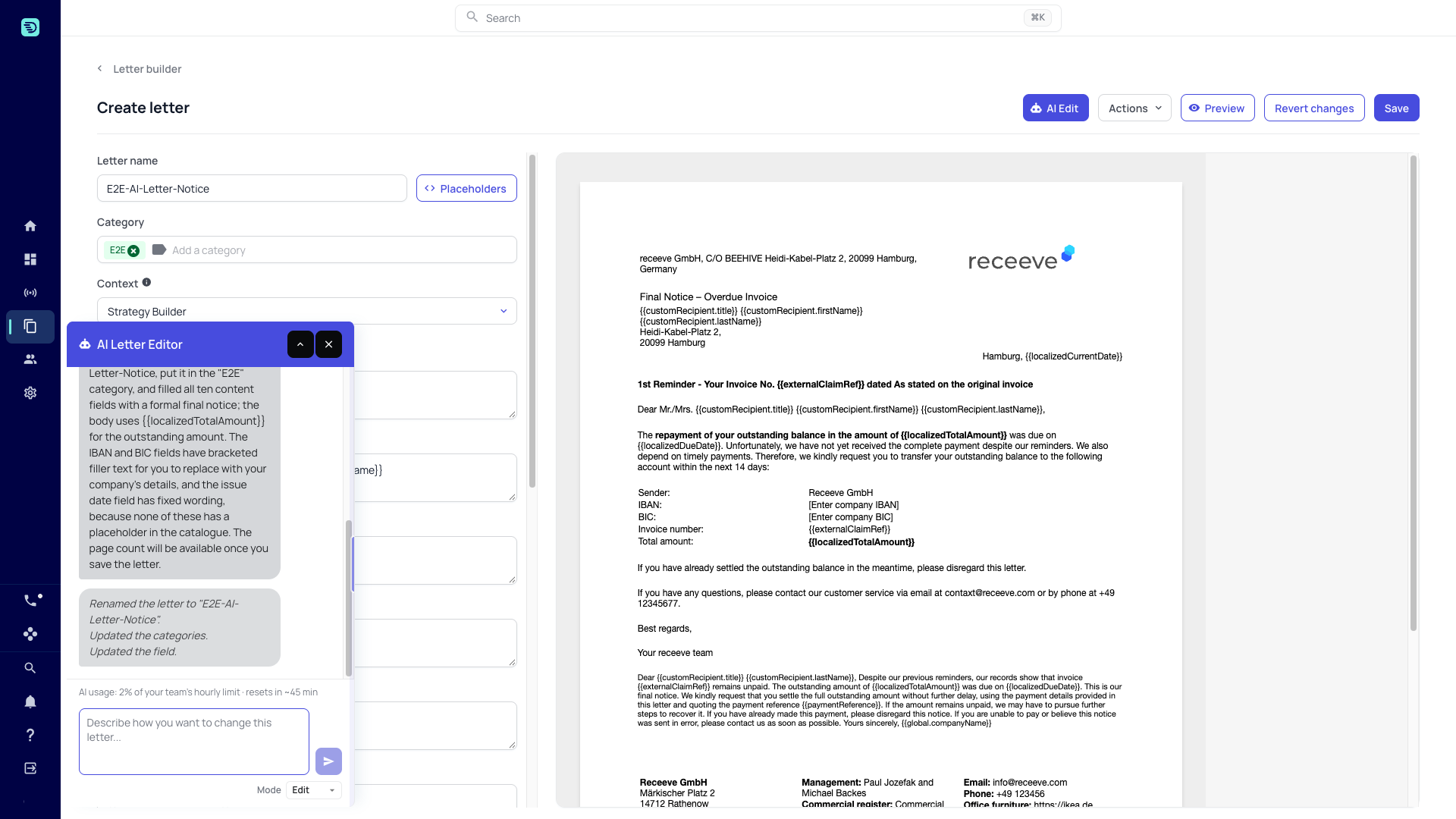
On a new letter, once you have named it and chosen its layout, tell the assistant what letter you need. One prompt proposes every part of the template at once:
- the name of the letter,
- the categories, picked from the categories your account already has,
- every content field the layout defines — title, greeting, paragraphs, closing — with the right placeholders.
The assistant explains what it wrote and lists each change under its reply — for example "Renamed the letter to "Final-Notice".", "Updated the categories.", "Updated the field.". The preview shows the rendered letter straight away.
Refine with further prompts
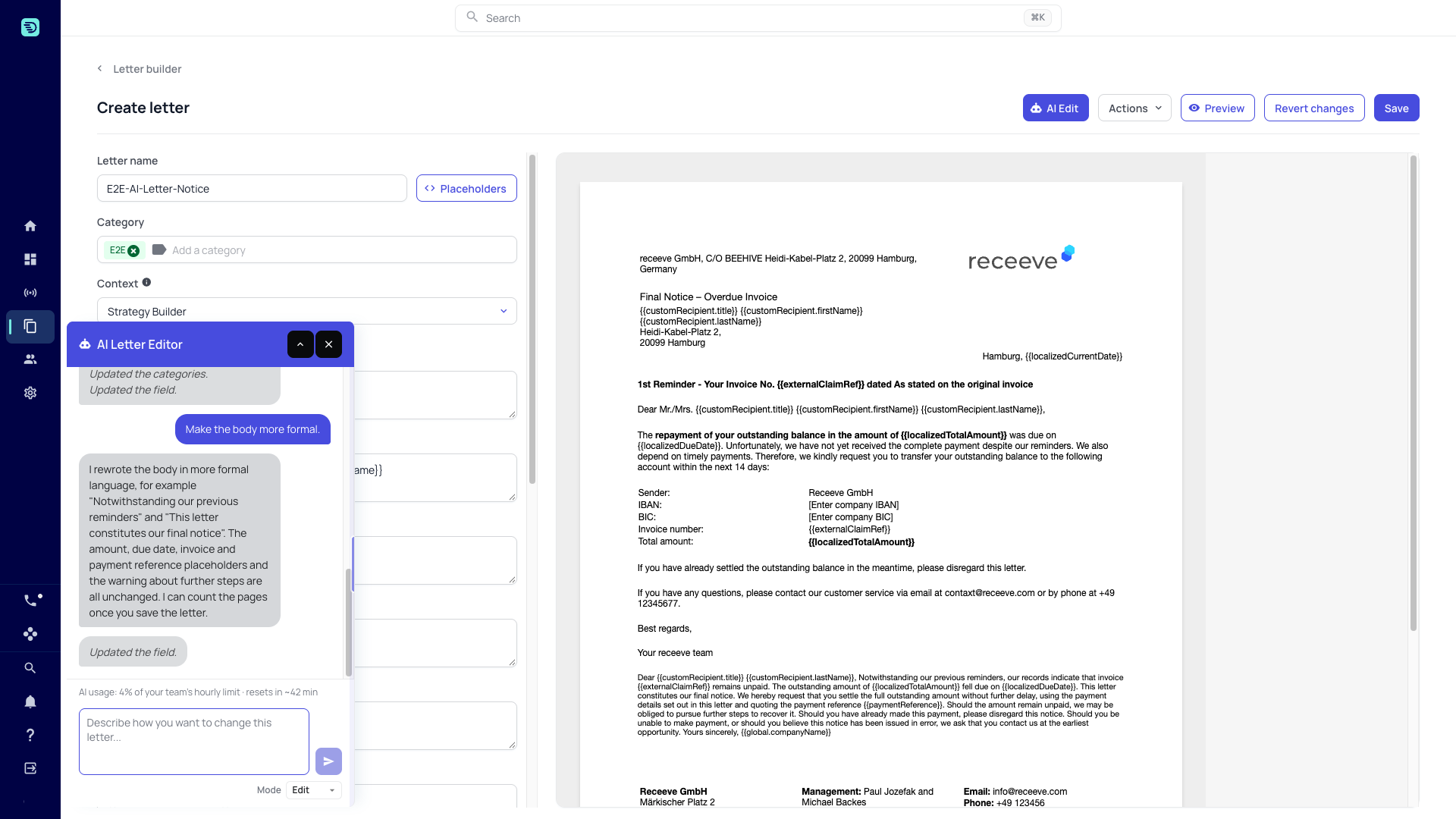
Each prompt builds on the current state of the letter, including anything you changed by hand in between. Ask for the next change in plain language:
"Make the body more formal."
The assistant rewrites the field, quotes the new wording where useful, and says what it kept — the placeholders, the amount, the dates and the next steps.
What you can change
Content fields
- "Make the main paragraph shorter"
- "Add a closing paragraph that thanks the customer"
- "Add the recipient's address block"
- "Translate this letter into German"
The assistant writes into the fields of the layout you chose. It does not change the layout itself; pick a different layout when you create the letter if you need other fields. It can also rewrite a field in another language, keeping its placeholders.
Placeholders
The assistant inserts placeholders such as {{customRecipient.formattedTitle}}, {{externalClaimRef}}, {{localizedDueDate}}, {{localizedTotalAmount}} and {{paymentReference}} from your account's placeholder catalogue — the same list you get from the Placeholders button. It only uses placeholders that exist there; if you ask for one that doesn't, it tells you instead of inventing it. For the full list see the Placeholder reference.
Name, categories and context
- "Rename the letter to Final-Notice"
- "File it under the Notices category"
- "Change the context to Strategy Builder"
Categories come from the categories that already exist on your account; the assistant never creates a new one. The assistant also changes the template's context — which decides which placeholders it can use — but only when you ask, and it names the placeholders that stop working. It never writes the sender name or number fields; set those by hand.
Length
- "Shorten this letter so it fits on one page"
On a saved letter the assistant measures the result and reports the page count. See Page count.
When a request breaks a rule
If a request breaks one of these rules — a placeholder that isn't in the catalogue — the assistant changes nothing in that turn and tells you why. A field the layout doesn't have is caught in the builder itself, so that part alone is skipped and the rest still applies.
Working alongside manual edits
- Changes appear in the fields and the preview immediately.
- The assistant applies its edits on top of your unsaved manual changes.
- You can fine-tune an AI-written field by hand afterwards.