Edit your strategy
Edit mode lets you change your strategy by describing what you want in plain language. The assistant applies the change directly to the canvas, where you can see it immediately, keep editing by hand, and undo or redo as normal.
Select Edit from the Mode selector, then describe the change you want.
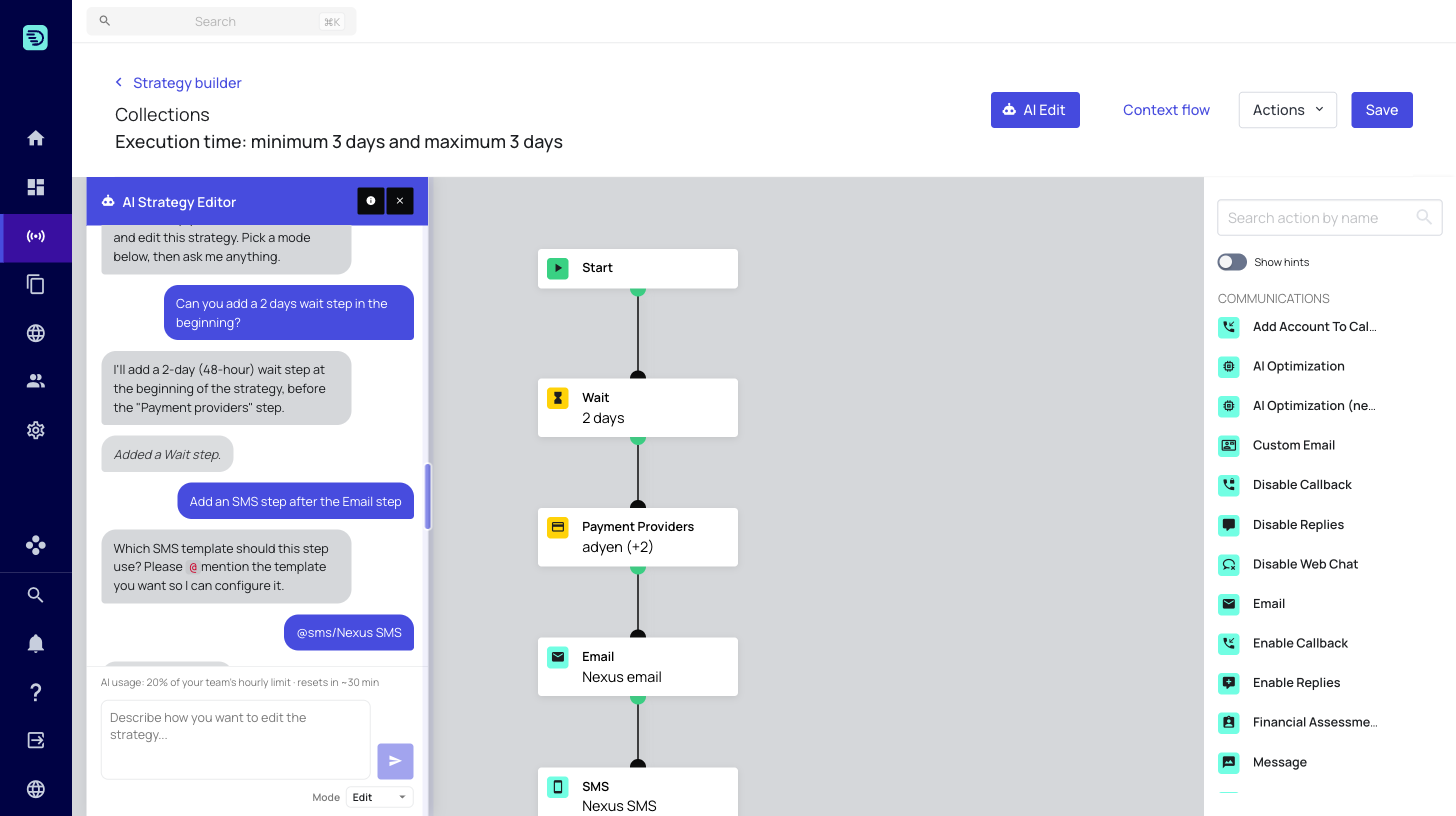
AI edits are not saved automatically. They appear on the canvas like any manual edit and are only persisted when you click Save. See Saving your changes.
Adding steps
Ask for a new step and where it should go:
- "Add an SMS step after the email step"
- "Add a 3-day wait at the beginning"
- "Add a Place Call step before the outsource step"
The assistant can add steps across every family — communication (Email, SMS, WhatsApp, Message, Place Call, Send Letter…), payments, flow & timing (Wait, Switch Path, Insert Path), outsourcing, tasks and workflows.
Removing and reconfiguring steps
- "Remove the second wait step"
- "Change the wait to 7 days"
- "Update the email step to use a different template"
You can also ask it to update or remove a step you just added in the same conversation — "actually make that a 5-day wait".
Connecting, disconnecting and paths
The assistant understands the shape of the flow, not just individual steps:
- "Connect the SMS step to the wait step"
- "Add a Switch Path at the end"
- "Insert a new path after the email"
Editing logic & data steps
The assistant is schema-aware for the more advanced step types and can author their configuration for you:
- If Condition and Segmentation — build the branch conditions
- Recursive Step
- Set Value
- Set Account Meta Field and Set Claim Meta Fields
Because it validates against your client's schema and available placeholders, it produces configurations that are valid for your account.
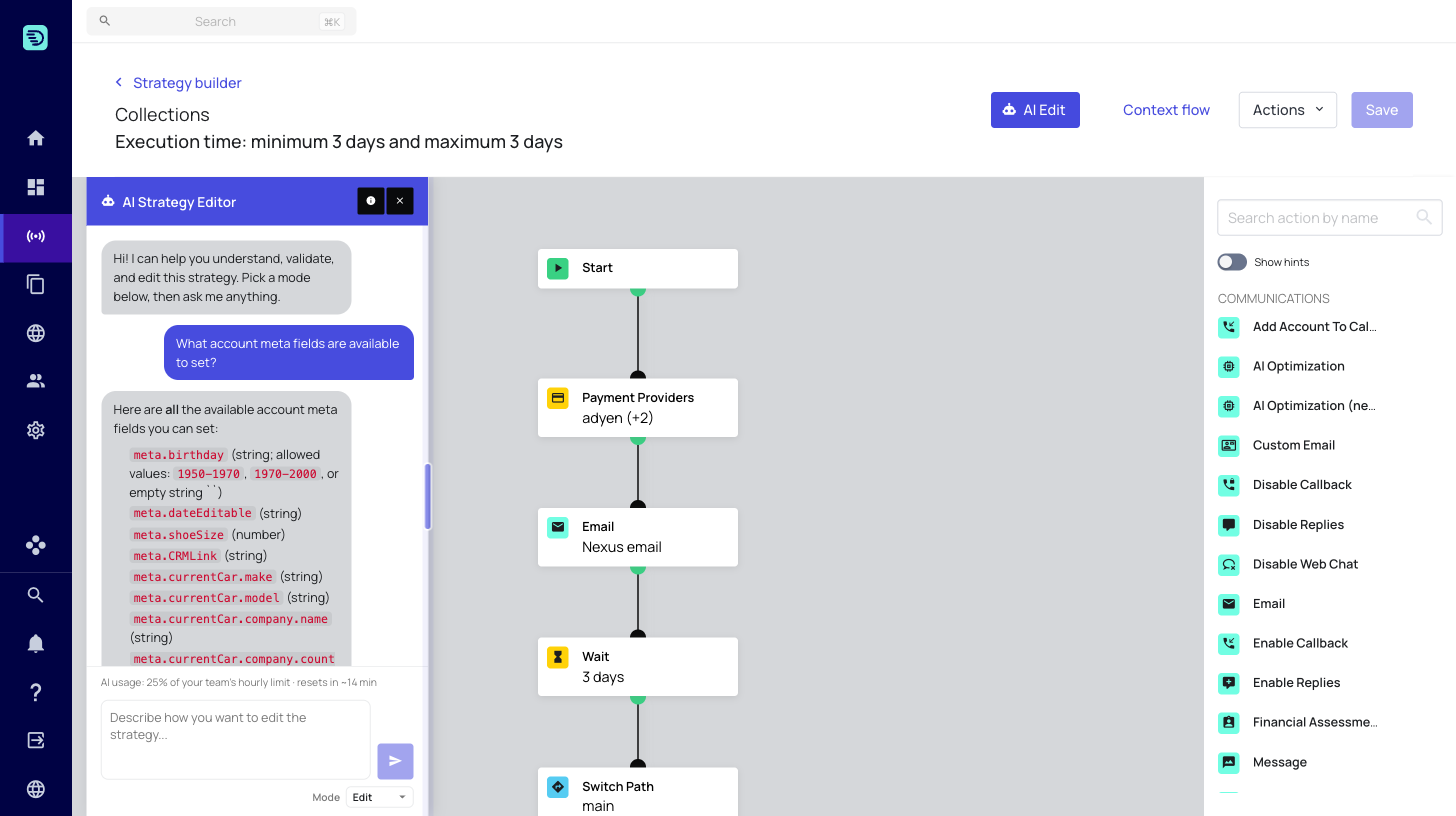
Ask what's available
You don't have to know the exact field or option names up front — you can ask the assistant what your account supports before you make a change:
- "What account meta fields are available to set?"
- "Which claim meta fields can I use here?"
- "What options can I configure on the recursive step?"
- "What variables can I use in this If condition?"
The assistant answers from your client's schema, so you can see the real choices and then ask it to apply the one you want.
Making several changes at once
You can describe multiple changes in a single message and the assistant applies them together:
"Add a 2-day wait after the email step, then add an SMS step using the @sms/Nexus template, and remove the final switch path."
When the assistant needs more detail
If your request is ambiguous, the assistant asks a clarifying question instead of guessing. For example, when you add a send step it needs to know which template to use:
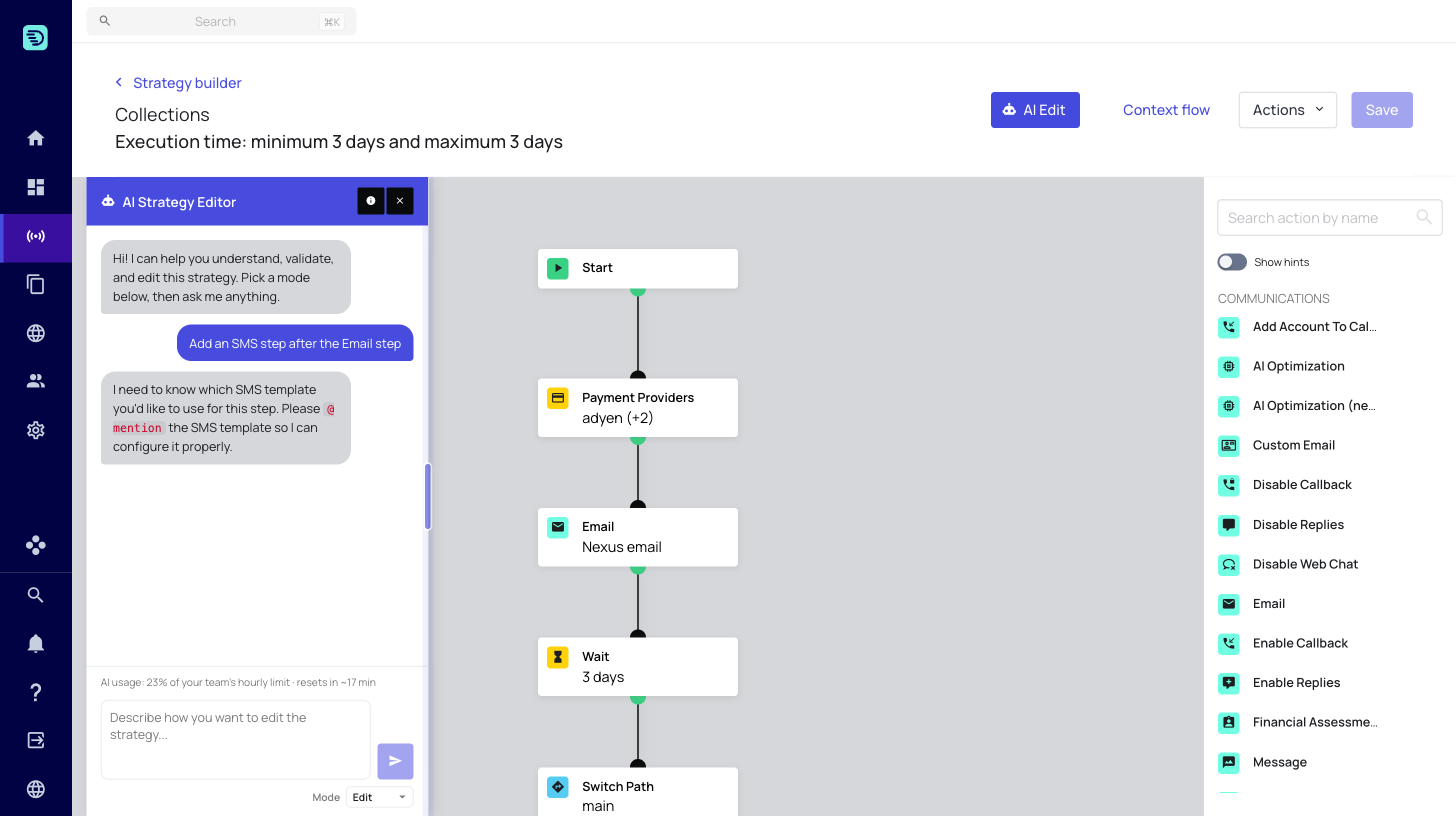
Reply with the detail it asks for — often by @mentioning a template — and it completes the change.
Working alongside manual edits
AI edits and manual edits live together:
- Changes appear on the canvas immediately
- Undo/redo works across both AI and manual changes
- You can fine-tune an AI-added step by hand afterwards
If an instruction can't be applied — for example, referring to a step that isn't part of the strategy you're editing — the assistant tells you why rather than making an unexpected change.