Explain your strategy
Explain mode helps you understand a strategy in plain language. It is read-only — it never changes your strategy — so it's a safe way to get oriented, review someone else's work, or onboard a new team member.
Select Explain from the Mode selector, then ask your question.
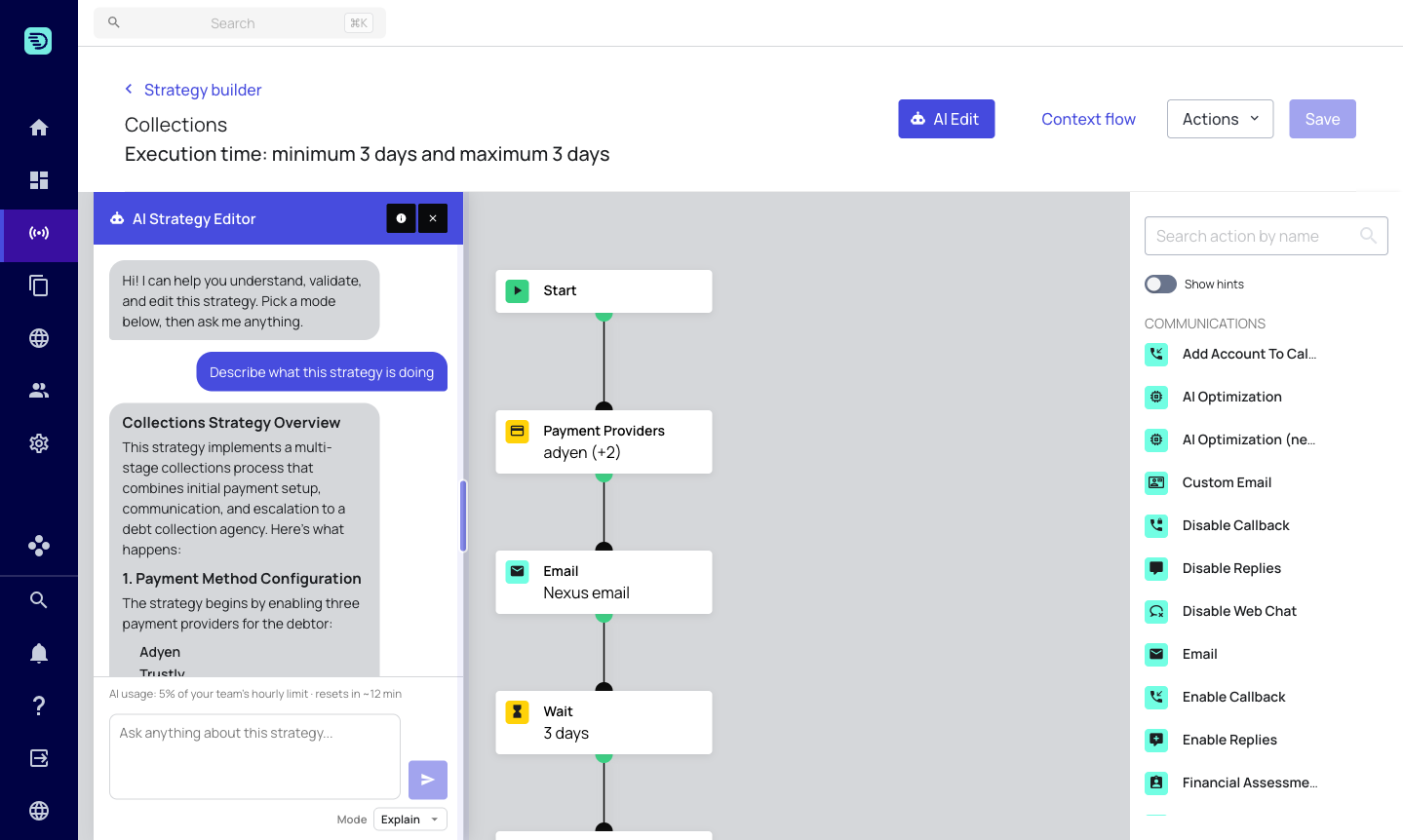
Explain the whole strategy
Ask the assistant to summarise the strategy you have open:
- "Describe what this strategy is doing"
- "Walk me through this strategy step by step"
- "What happens to a claim that goes through this strategy?"
It returns a structured overview — the purpose of the strategy, the order of the steps, the waiting periods, and where the flow branches — based on the current state of the canvas, including any unsaved changes.
Explain a single step
You can ask about any individual step, referring to it by its name or position:
- "What does the Payment Providers step do?"
- "Explain the If condition near the end"
- "Which template does the first email use?"
The assistant understands every step type in the Strategy Builder, including:
- Communication — Email, SMS, WhatsApp, Message, Place Call, Send Letter and other channels
- Channels & content — which template and locale a send step uses
- Flow & timing — Wait, Wait Time of Day, Switch Path, Insert Path
- Data & payments — Payment Providers, Set Value, Set Account/Claim Meta Field
- Conditions & logic — If Condition, Segmentation, Recursive Step
- Outsourcing — Outsource, Revert Outsource
- Tasks & workflows — Create Task, Create Workflow
For steps that contain JavaScript code (such as If conditions), the assistant can read the code and explain in plain language what it evaluates.
Ask follow-up questions
The conversation keeps its context, so you can drill in without repeating yourself:
- "Why is there a wait after the email?"
- "What happens if the payment fails?"
- "Is the German template correct here?"
Explain and compare other strategies
Using an @mention, you can bring another strategy into the conversation to explain or compare it:
- "What's the difference between this strategy and @strategy/Late-Stage-Legal?"
- "Explain @strategy/Early-Stage-Collections"
The assistant fetches the referenced strategy and can describe it, or contrast it with the one you have open — useful for understanding how two journeys differ before you make changes.
Answers in your language
The assistant replies in the language you write in. Ask in German, Spanish, Dutch or English and you'll get the explanation back in the same language.
Explain mode is a great first step before editing. Ask the assistant to describe a strategy, confirm your understanding, then switch to Edit mode to make changes.