Making changes
Switch the Mode selector to Edit and the assistant can make a small, specific set of changes for you — described in plain language instead of hunted for in menus. Everything Explain mode does still works; Edit only adds to it.
The assistant only ever does what is on this page. For any other change it stays read-only and tells you so. In Explain mode it can't change anything at all — "Switch to Edit mode to make changes."
What the assistant can do
| Change | What you'd say |
|---|---|
| Add a note to the account | "Add a note that the debtor called about the balance." |
| Register an interaction on the account | "Register this interaction: I spoke with the debtor, they promised to pay Friday." |
| Set a metafield on the claim or account | "Set the risk level metafield on this claim to HIGH." |
| Resolve a claim | "Resolve this claim as paid." |
| Reopen a resolved claim | "Reopen this claim." |
Nothing else. The assistant cannot reassign strategies, change amounts, edit contact details, or act on anything outside this list.
Your permissions still apply
Edit mode does not bypass Role Manager. Each change runs through the same permission the equivalent manual action would need, so the assistant can only do what your role already lets you do. If you lack the permission, the change isn't offered.
Two ways a change is confirmed
Every change is confirmed before it happens — but the confirmation looks different depending on the change.
Confirmed in the panel
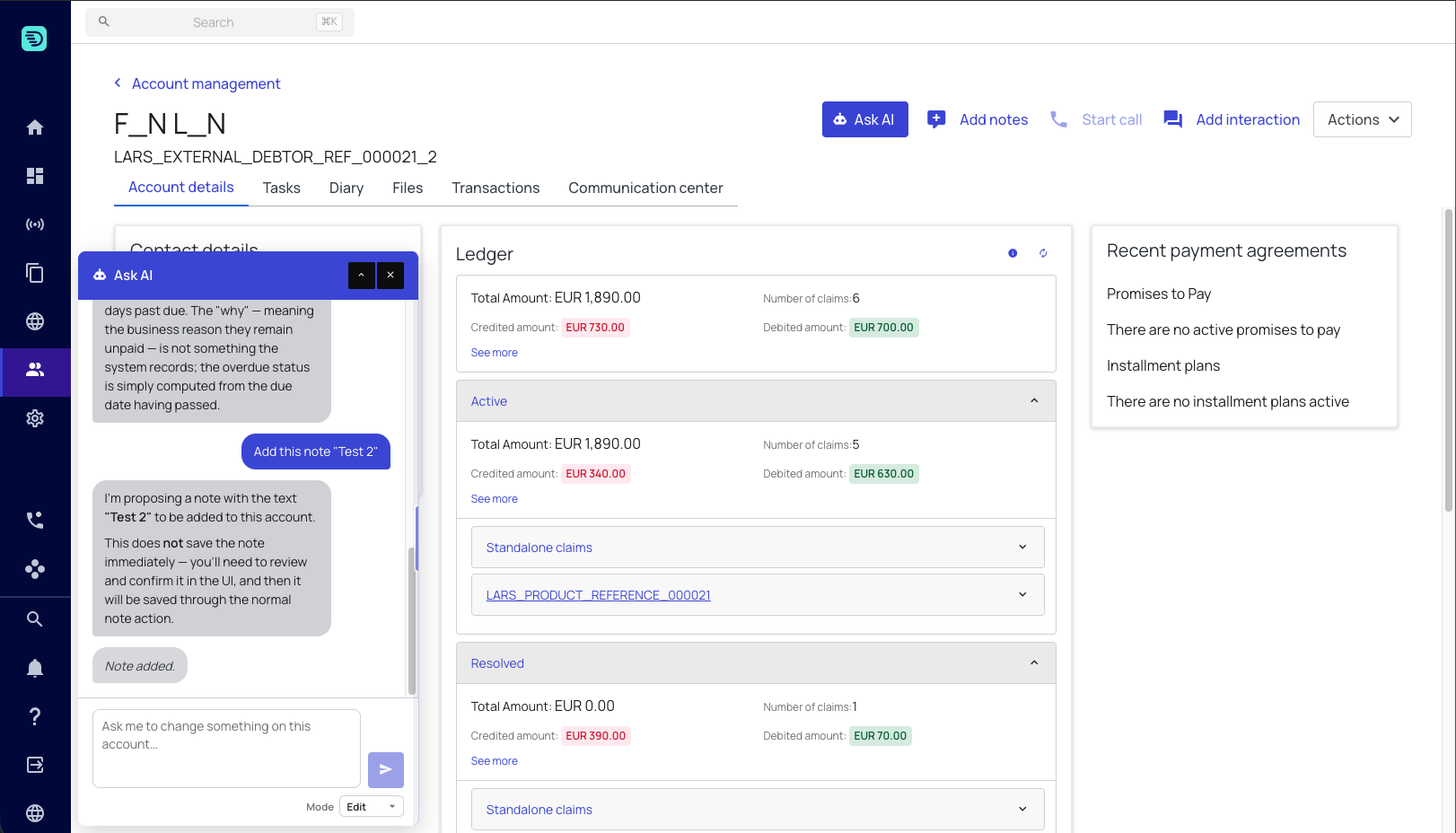
Adding a note and registering an interaction are prepared by the assistant and shown to you as a confirmation card — "Add this note?", "Log this interaction?" — with the content it drafted. Nothing is saved until you accept. Accept it and you'll see "Note added." or "Interaction logged."; decline and the assistant confirms it did nothing: "Okay, I have not applied that."
Confirmed in the conversation
Setting a metafield, resolving a claim and reopening a claim are applied the moment the assistant performs them, so it asks you in the chat first and names exactly what it is about to do:
We are about to resolve claim ACC-1_invoice_2 — are you sure you want to continue?
We will set the riskLevel metafield to HIGH on this claim — are you sure you want to continue?
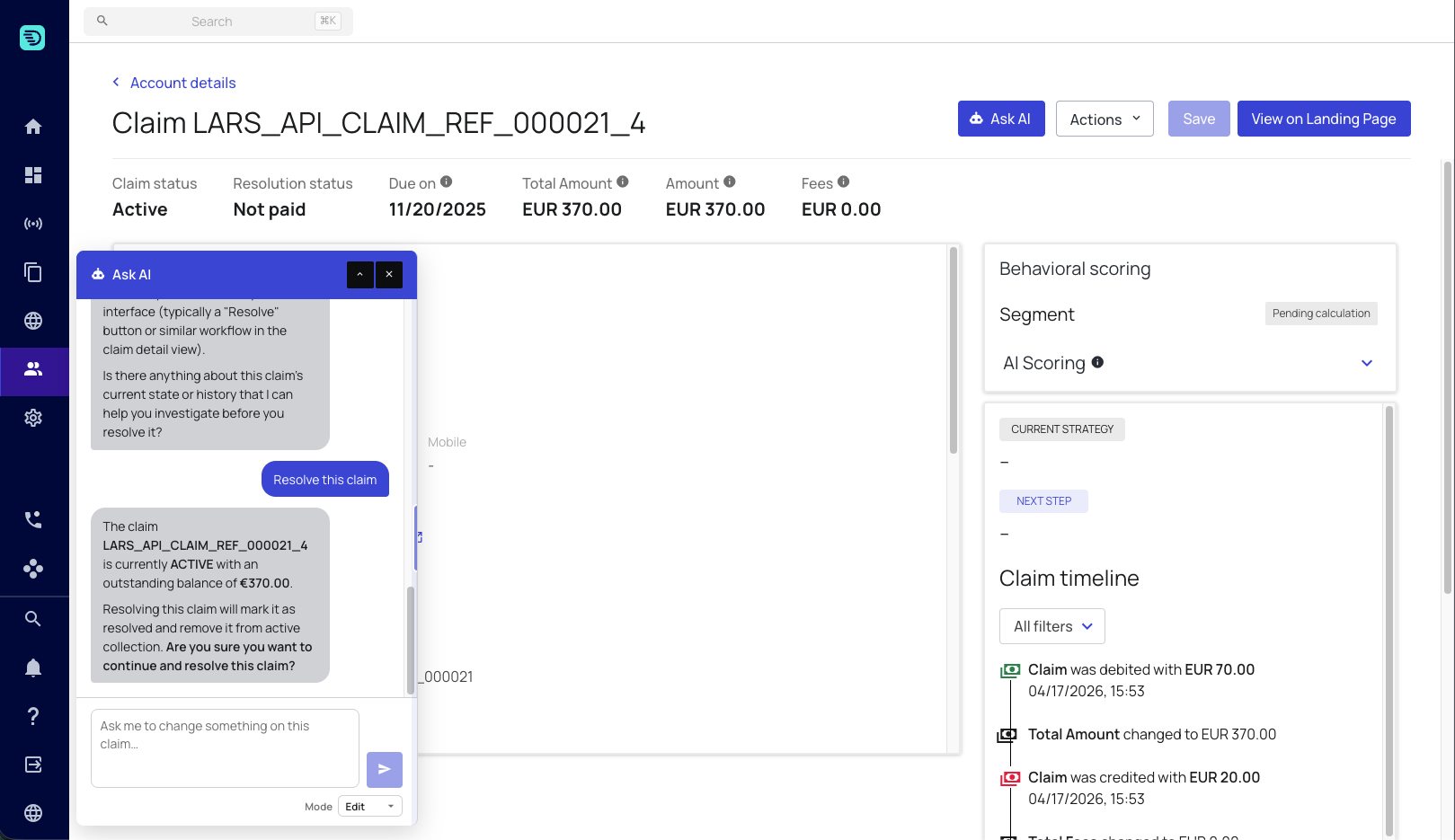
It won't act until you reply confirming. Telling it which claim to act on is not a confirmation — it will still ask.
These three changes are real and immediate once you confirm. There is no undo in the chat; reopening a claim you resolved by mistake is itself a separate change.
Registering an interaction
The assistant turns your sentence into a structured interaction. It needs three things:
- The communication method — how you made contact.
- The direction — inbound if the debtor reached out, outbound if you did.
- The outcome — inferred from your description where it can be ("they promised to pay" becomes a promise-to-pay outcome).
Anything it can't infer, it asks for rather than guessing. The outcome is matched against your client's configured contact outcomes when it's applied — if it doesn't match one, the assistant tells you which outcomes are valid so you can pick.
Setting a metafield
The assistant knows your client's settable metafield keys for claims and accounts, so it works from the real catalogue rather than a guessed field name.
Before it changes anything it checks the field's current value. If the field is already set to what you asked for, it tells you no change is needed rather than applying a redundant write.
One claim at a time
Resolving and reopening act on exactly one claim — the one you named. Bulk resolution through the assistant is not possible by design. For bulk work, use the standard bulk actions in Claim Overview.
After a change
Changes are applied in the background and take a moment to appear. The assistant re-reads the record until it can see the change landed, and only then reports it as done. If it still can't see it after a few tries, it tells you the change was submitted and is still being applied — rather than claiming success or failure it can't back up.
If a change fails outright, you'll see "Sorry, that could not be applied. Please try again." and nothing has been changed.
Investigate first, then act. Ask the assistant what the field is currently set to — or why the claim is still open — before asking it to change anything.