Referencing other claims
Type @ in the chat box to bring one of the account's other claims into the conversation. This lets you compare two claims, ask about a sibling claim without leaving the page you're on, or name the exact claim you want the assistant to act on.
The mention picker
When you type @, a picker opens listing the claims on this account by their claim reference. Keep typing to filter the list by reference, then pick the claim you want — it's inserted into your message as a chip.
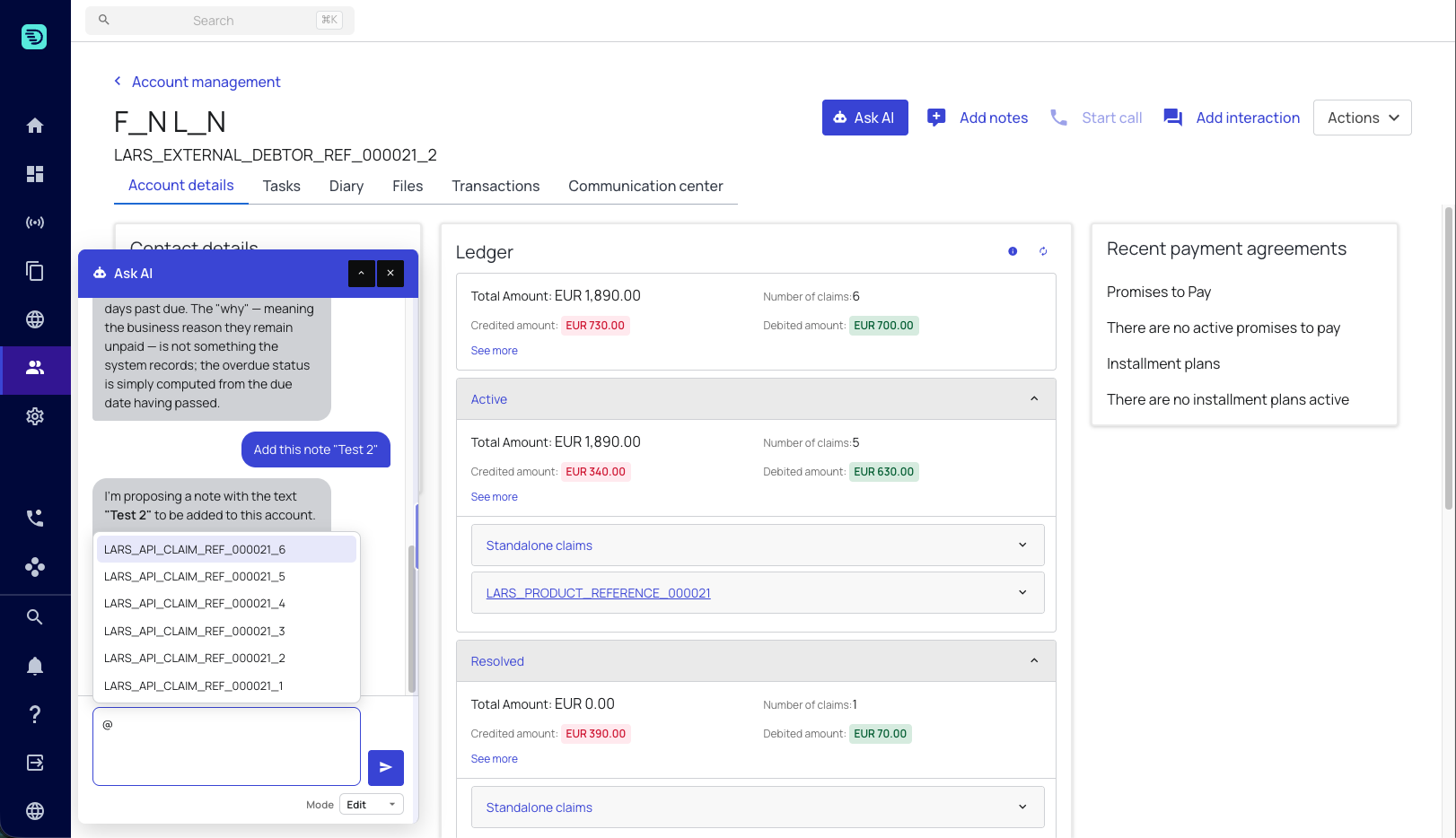
The picker searches the account's claims only. It never reaches claims on other accounts, so an @mention can't pull in a record outside the account you're looking at.
The picker shows up to 10 matching claims at a time and re-searches as you type. On an account with many claims, type more of the reference to narrow it down rather than scrolling.
Referencing claims in your questions
Both the Account and the Claim chat support mentions. On the account page they let you aim a question at one specific claim:
- "Why is @ACC-1_invoice_3 overdue?"
- "What's the next step in the strategy for @ACC-1_invoice_1?"
On a claim page, they let you bring in a sibling claim to compare against the one you have open:
- "How does this claim differ from @ACC-1_invoice_2?"
- "Is @ACC-1_invoice_2 on the same strategy as this one?"
Referencing claims in Edit mode
When you ask for a change, mentioning the exact claim removes any ambiguity about which record you mean:
- "Resolve @ACC-1_invoice_2"
- "Set the risk level on @ACC-1_invoice_3 to HIGH"
The assistant still asks you to confirm before it acts — naming the claim is not the same as confirming the change. See Making changes.
Limits
You can reference up to 5 claims in a single prompt. If you add more, the send button is disabled until you remove some — split the request across a couple of messages instead.
Mentioning a claim by reference is the quickest way to stop the assistant having to ask you which claim you mean — especially on accounts with several similar-looking claims.