AI Landing Page Editor
The AI Landing Page Editor is an AI-powered chat assistant built into the Landing Page Builder. It lets you understand and edit the page you have open using plain language — describe the copy, layout or styling you want and it makes the change on the canvas, or ask it what the page does and it explains.
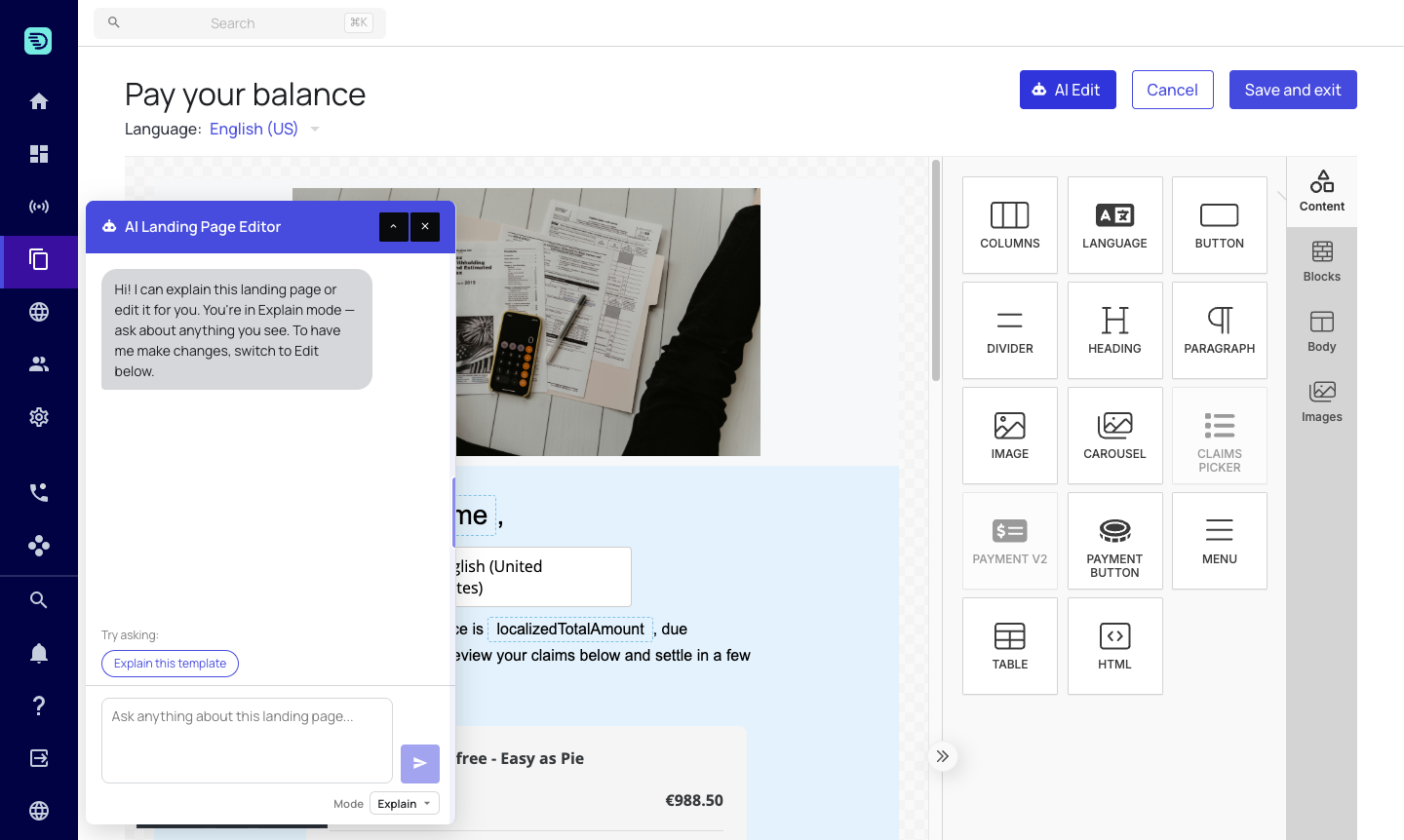
The AI Landing Page Editor is rolled out gradually and may need to be enabled for your account. If you don't see the AI Edit button in the content editor, contact your Customer Success Manager or the InDebted team to have it switched on.
Opening the assistant
- Open a landing page's content editor in the Landing Page Builder.
- Click the AI Edit button in the top-right of the header.
- The AI Landing Page Editor panel opens over the canvas. The page stays fully visible and editable while the panel is open.
Close the panel at any time with the × button — your conversation and any unsaved changes remain until you leave the page.
The two modes
Choose the mode from the Mode selector at the bottom of the panel:
| Mode | What it does |
|---|---|
| Explain | Describes what the page — or a single element — does, in plain language. Read-only. |
| Edit | Rewrites copy, restyles elements, adds and removes content, and rearranges the page based on your instructions. |
Switching modes doesn't clear your conversation — you can ask the assistant to explain the page and then edit it in the same session.
A few things it can do:
- "What does this landing page do?"
- "Rewrite the heading to sound more welcoming"
- "Make the payment section stand out with a light grey background"
- "Add a Pay now button under the intro"
- "Move the image above the heading"
How it works on your page
The assistant always works on the current state of the page on your canvas, including any unsaved changes you made by hand. When it makes an edit, the change appears immediately on the canvas so you can see exactly what happened.
You can keep editing manually and combine AI edits with your own changes freely.
AI edits behave exactly like manual edits — they are only persisted when you click Save and exit. See Saving your changes.
Platform widgets
The claims picker, payment component, payment button, QR code and language picker are platform widgets — they render live data for the debtor. The assistant can add, configure, move and remove them, within the rules each widget carries. See Platform widgets.
Usage limits
The assistant shows your team's current AI usage above the input box (for example, "AI usage: 15% of your team's hourly limit · resets in ~29 min"). See Usage limits & availability for details.
In this section
- Explain your landing page — understand a page or a single element
- Edit your landing page — make changes with natural language
- Platform widgets — claims picker, payment and the rest
- Saving your changes — how AI edits are persisted
- Usage limits & availability
- Safety & good practices