Edit your landing page
Edit mode lets you change your landing page by describing what you want in plain language. The assistant applies the change directly to the canvas, where you can see it immediately and keep editing by hand.
Select Edit from the Mode selector, then describe the change you want.
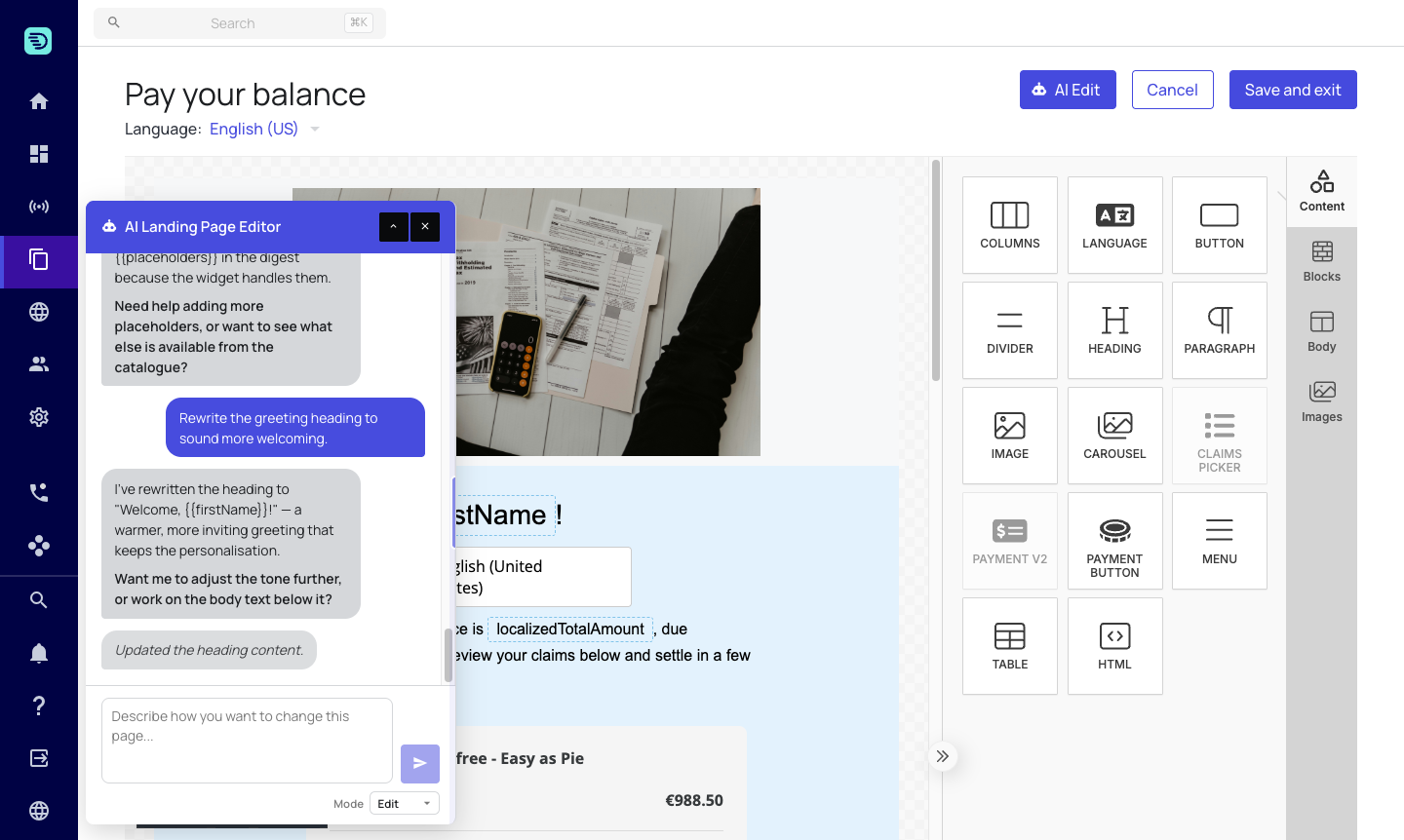
AI edits are not saved automatically. They appear on the canvas like any manual edit and are only persisted when you click Save and exit. See Saving your changes.
Rewriting copy
Ask for the wording you want and the assistant rewrites it in place:
- "Rewrite the heading to sound more welcoming"
- "Make the intro shorter and friendlier"
- "Change the button label to Pay now"
If you dictate exact wording — "the heading must say exactly 'Welcome to your account'" — it uses your text verbatim.
Restyling
Colours, backgrounds, spacing and alignment can all be described rather than clicked:
- "Make the Pay now button green"
- "Give the footer row a dark background and white text"
- "Change all the blue elements to purple"
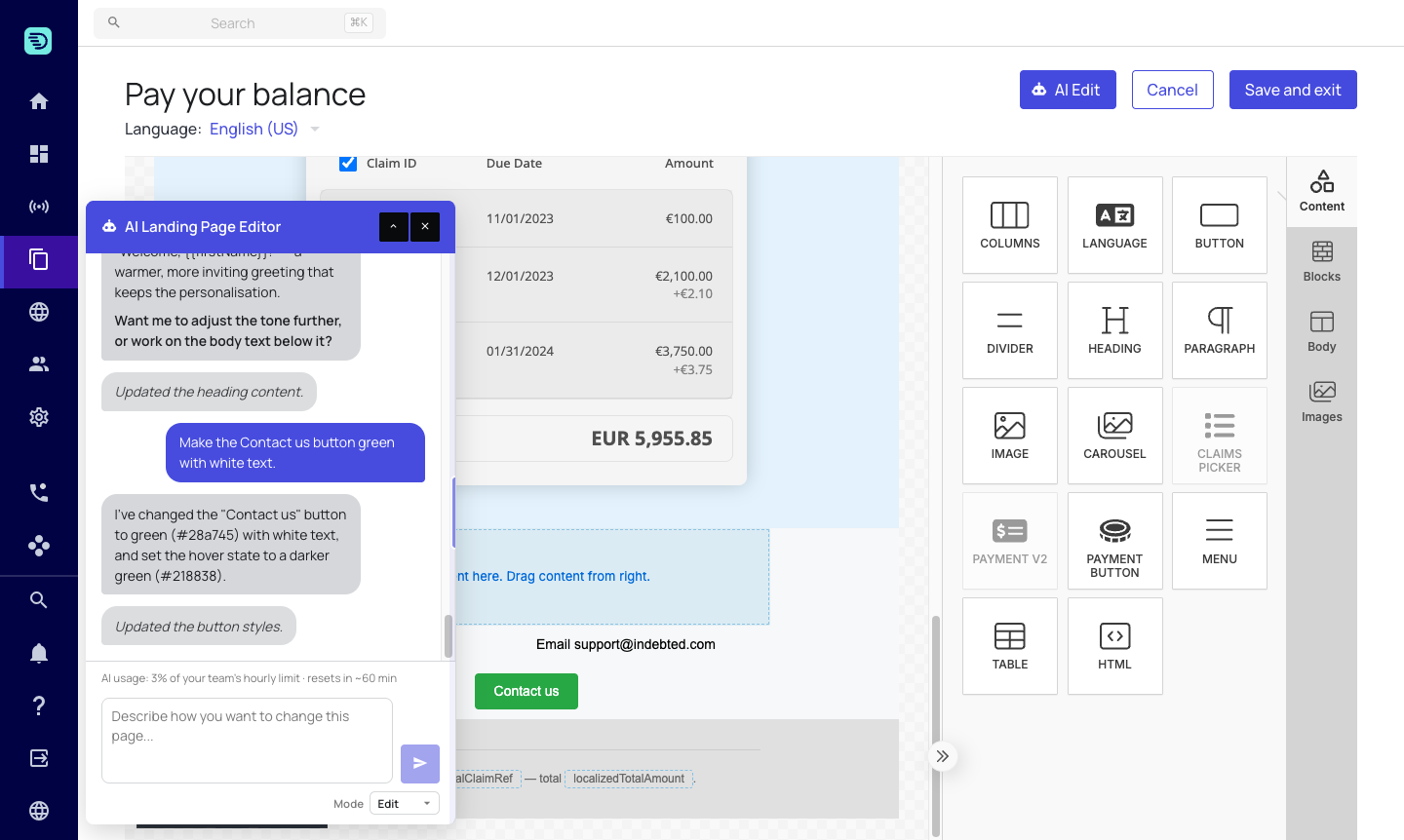
The assistant reads the colours already on the page, so a request like "make it match the header" works without you looking up a hex value.
Adding, moving and removing elements
- "Add a Pay now button under the intro"
- "Add a divider above the footer"
- "Move the image above the heading"
- "Remove the second paragraph"
Buttons, headings, text, images, dividers and rows can all be created, positioned and removed this way. For the claims picker, payment component and other platform widgets, see Platform widgets.
Placeholders
Placeholders such as {{firstName}} and {{localizedTotalAmount}} are live data — the debtor's real name, their real balance. The rule is simple:
- Ask for a tone or style change — "make the wording harsher", "shorten the intro" — and the placeholders stay. The copy around them changes; they don't.
- Dictate exact wording that leaves no room for one, and it uses your text. The reply then names the placeholder it had to drop, so a lost personalisation is never silent.
It will not invent a placeholder that your page doesn't support. Ask what's available and it lists them:
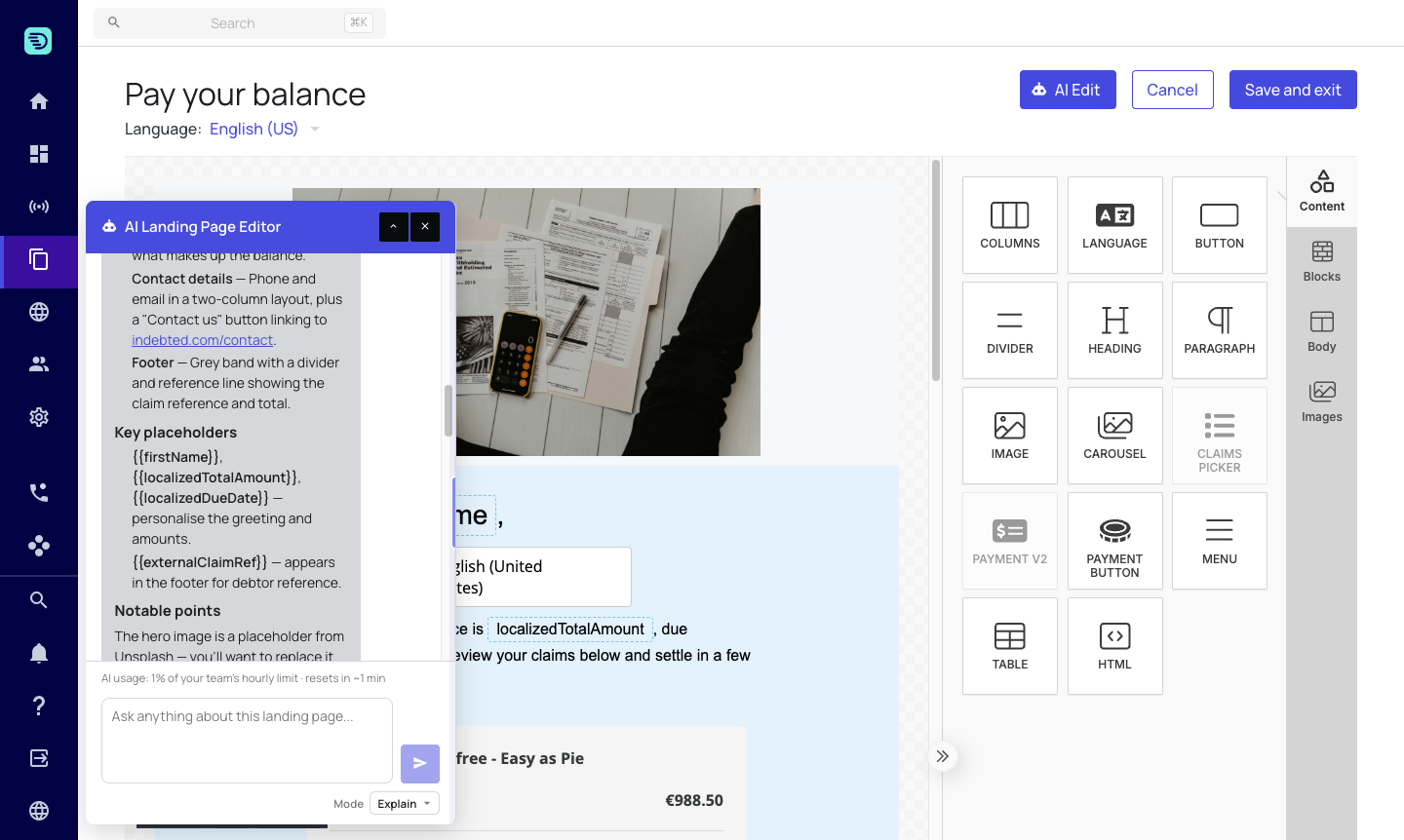
The same applies to links and images — it asks for the URL rather than making one up. To link a button, give it an https address in your request: "add a Pay now button linking to https://pay.example.com".
Making several changes at once
You can describe multiple changes in a single message and the assistant applies them together:
"Rewrite the heading to be warmer, make the Pay now button green, and move the image above it."
When something can't be applied
If part of your request can't be done, the assistant applies the rest and tells you what it couldn't do and why — it never silently skips a change. Common reasons are a widget that only allows one per page, a widget the page type can't carry, or a setting a platform widget doesn't expose.
If a turn changes nothing at all, the reply ends with "No changes were made to this page." Trust that line over the prose above it: whenever the assistant has actually edited something, the change is listed and visible on the canvas.
Work in small, clear instructions and check the canvas as you go. You can always ask the assistant to explain what it just changed.