Explain your landing page
Explain mode helps you understand a landing page in plain language. It is read-only — it never changes your page — so it's a safe way to get oriented, review someone else's work, or onboard a new team member.
Select Explain from the Mode selector, then ask your question.
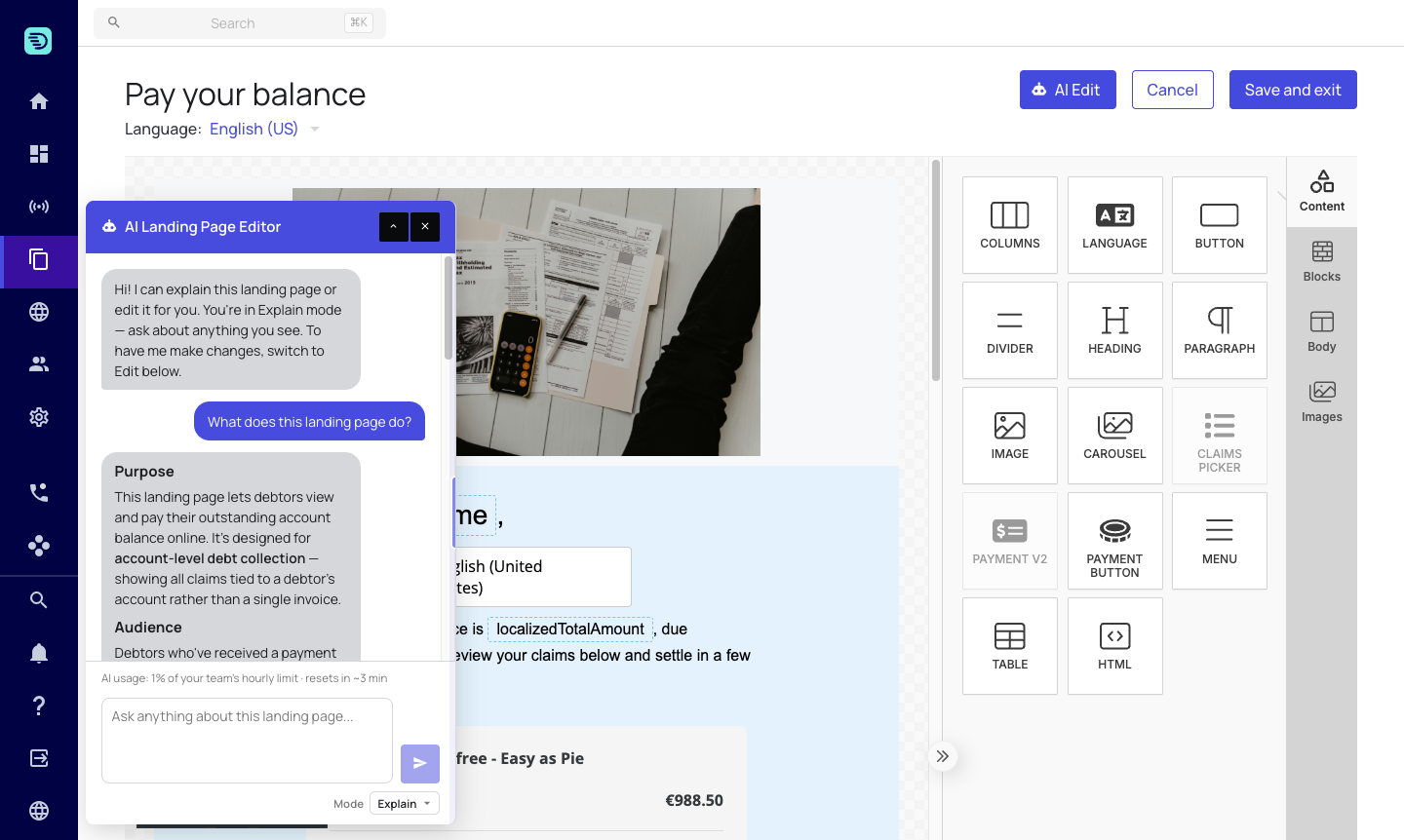
Explain the whole page
Ask the assistant to summarise the page you have open:
- "What does this landing page do?"
- "Walk me through this page from top to bottom"
- "What will the debtor see when they open this?"
You get a compact overview — the purpose of the page, who it is for, the main sections in the order they appear, and the placeholders it depends on — based on the current state of the canvas, including any unsaved changes. It ends by offering to go deeper, so you can drill into the part you care about instead of reading an audit.
Explain a single element
You can ask about any individual element, referring to it by what you see:
- "What does the claims picker do?"
- "Explain the button below the intro"
- "Which placeholders does the footer use?"
The assistant describes elements the way the editor and the debtor see them — the heading, the intro text, the pay button, the claims list — not by internal identifiers.
Ask about styling and placeholders
Explain mode is also the quickest way to answer questions about how the page is put together:
- "What colours are used on this page?"
- "Which placeholders are on this page, and where?"
- "Is anything missing that a payment page usually has?"
It reports colours, spacing and fonts when you ask about them, and keeps them out of the way when you don't.
Ask follow-up questions
The conversation keeps its context, so you can drill in without repeating yourself:
- "Why is that section a different colour?"
- "What happens if the debtor has no open claims?"
- "Is the heading clear enough for a first reminder?"
Answers in your language
The assistant replies in the language you write in. Ask in German, Spanish, Dutch or English and you'll get the explanation back in the same language.
Explain mode is a great first step before editing. Ask the assistant to describe the page, confirm your understanding, then switch to Edit mode to make changes.